

Connect your Zoom account
1
Open the Zoom tile
Go to Integrations and open the Productivity tab, then select Zoom.
2
Sign in with Zoom
Under Zoom account, select Sign in with Zoom and approve the connection in the Zoom
window. You are signing in to your own Zoom account; the meetings DMLY creates are hosted
there and appear in your Zoom account like any other.
3
Check the tile reads Connected
Back on Integrations, the Zoom tile shows Connected. That is all the setup Zoom
itself needs.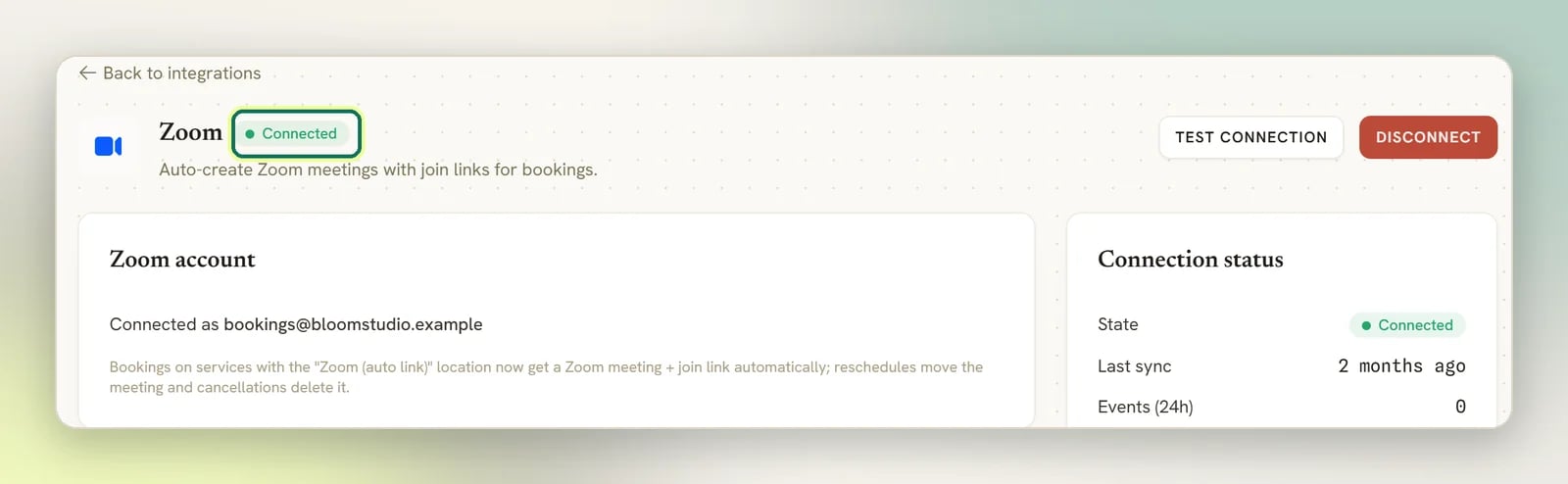
Connecting Zoom changes nothing on its own. Nothing is auto-linked until a service uses the
Zoom (auto link) location; that is the switch that does the work.
Turn on auto-linking for a service
Each service carries its own location. Open the service in Offerings → Services and set its location to Zoom (auto link). From then on, every booking against that service gets its own Zoom meeting and join link. Services set to any other location are untouched, so you can mix online and in-person services in the same workspace. See Offerings for the rest of the service settings.What happens to the meeting
Once a service is set to Zoom (auto link), DMLY keeps the Zoom meeting in step with the booking for you:
A booking only ever gets one meeting. If one already exists, DMLY leaves it alone rather than
creating a second. If a meeting is deleted in Zoom directly, the next reschedule creates a
replacement rather than failing.
A class session works differently, and deliberately so: DMLY creates one meeting for
the session and every booked client gets that same join link. Individual seats never get their
own meeting. A class service can also use the Zoom Webinar (per-attendee) location instead,
which registers each client for their own personal join link rather than sharing one. This
needs the paid Zoom Webinars add-on on your connected Zoom account. See
Online classes.
Using the join link in messages
The join link goes into the booking messages a service sends: its Confirmation message and Reminder message, which you edit on the service itself in Offerings → Services. Write{{meeting.link}} wherever you want the join link to appear; the default confirmation already
includes it. It is also available in the flow builder after a Book Meeting node.
If a meeting could not be created, {{meeting.link}} falls back to the booking’s location
(for a Zoom service, just Zoom) instead of sending a broken link, so the message still goes
out and still reads sensibly.
Since WhatsApp is where most clients read their confirmations, this is usually the fastest way
to get someone into the call. See Appointments.
When a booking has no join link
A Zoom problem never blocks a booking. If DMLY cannot create the meeting (Zoom is disconnected, or Zoom itself returns an error), the booking is still made and confirmed, it just has no join link. This is the right trade-off (a client with a confirmed slot and no link beats a lost booking), but it does mean a missing link is quiet.Bookings are being made but no join link appears
Bookings are being made but no join link appears
Check both halves of the setup, in this order:
- Integrations → Productivity → Zoom reads Connected. If it reads Not connected or Error, reconnect; bookings made while it was disconnected keep no link. Error specifically means Zoom rejected the sign-in DMLY had stored (the permission was revoked in Zoom, or the saved token stopped working), so signing in again is the fix. Your workspace admins are emailed once when that happens. See How connecting works.
- The service in Offerings → Services is actually set to the Zoom (auto link) location. A service on any other location is working as configured.
Calendar sync
Keep bookings in step with your own calendar.
All integrations
Everything else you can connect to DMLY.