

Google Drive is a tab inside the media picker, not an integration tile; you won’t find it on the Integrations page.
Import files
1
Open a media picker
Open a media picker (the attach button in the Unified Inbox composer, a media node in the Automation flow builder, or the image field on an offering), then select the Google Drive tab. It’s described as Pick images or videos straight from your Google Drive.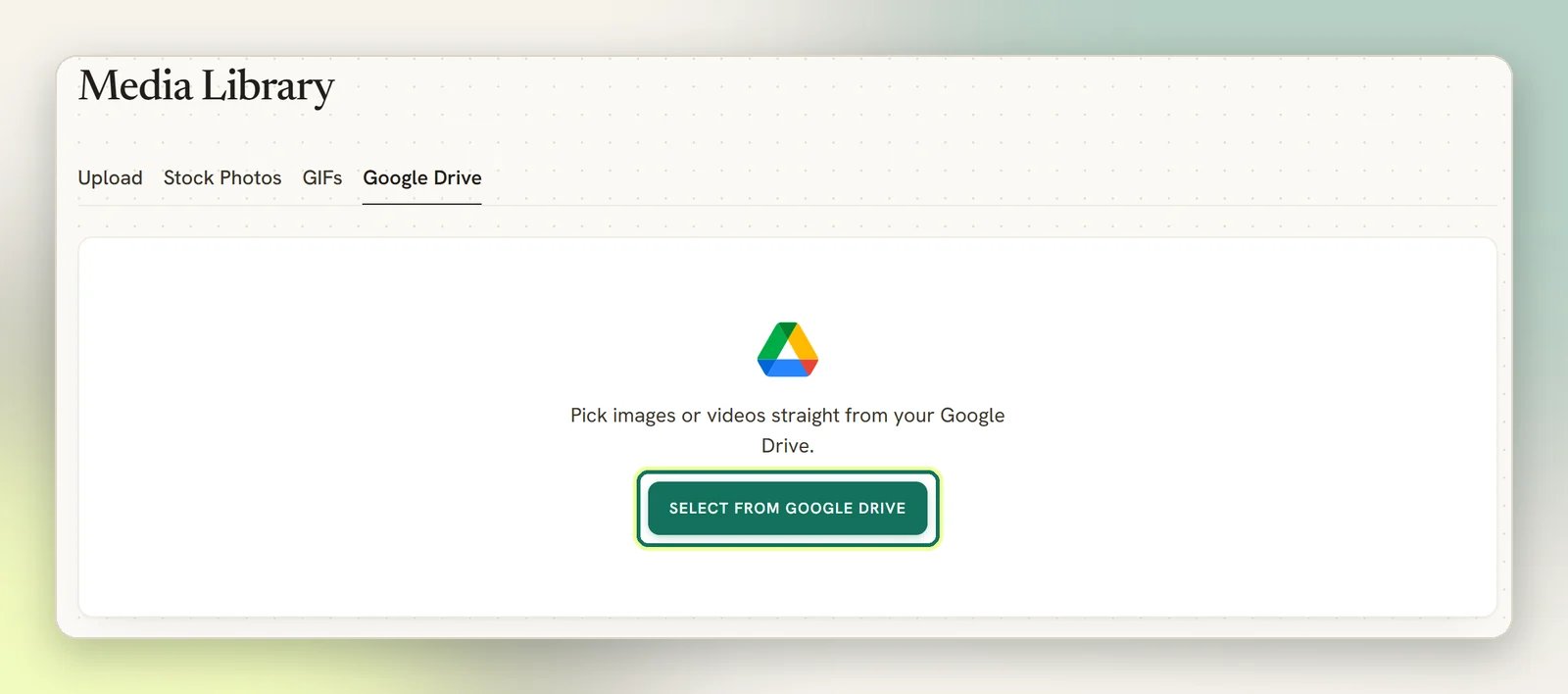
2
Select from Google Drive
Choose Select from Google Drive. Google asks you to sign in and confirm access, then opens its own file picker.
3
Pick your file
Select the image or video you want. The picker lets you choose one file per import.
4
Wait for the import
DMLY shows Importing from Google Drive… while it copies the file. When it finishes, it appears in your media library like any other upload, ready to attach to a message in the Unified Inbox, a media node in an automation flow, or an offering’s image.
What DMLY can see in your Drive
This is the part worth understanding before you connect: DMLY asks for the narrowest access Google offers. The permission is Google’sdrive.file scope, which grants access only to the files you explicitly pick in the picker. Everything else in your Drive stays invisible. If DMLY tried to read a file you didn’t select, Google would refuse. There is no folder browsing, no background sync, and no ongoing access to your Drive contents.
Once you’ve picked your files, your browser hands DMLY a short-lived pass and the file IDs, and the download happens on DMLY’s servers rather than in your browser.
Limits
Images and videos only
The picker shows images and videos. Google Docs, Sheets and Slides aren’t media files and are rejected if picked.
When something goes wrong
Google Drive access was not granted
Google Drive access was not granted
Google refused the access request, usually because you declined it. Select Select from Google Drive again and approve. If you simply closed the Google window, nothing happens; just select it again.
Could not load Google Drive. Try again!
Could not load Google Drive. Try again!
The Google picker didn’t load. This is usually a blocked pop-up, an ad blocker, or a flaky connection. Allow pop-ups for DMLY and try again.
Could not import from Google Drive. Try again!
Could not import from Google Drive. Try again!
The picker worked but the files didn’t copy across. Try again. If the same file keeps failing, check it isn’t larger than the upload limit or a file type the media library doesn’t accept. Download it and upload it directly to confirm.
Integrations
Connect DMLY to the rest of your stack.
Flow builder
Use imported media in an automation’s media nodes.