

n8n-nodes-dmly.
Installing it adds two nodes to your workflows:
- A DMLY action node that reads and writes your workspace (contacts, messages, appointments, invoices, orders and more) by mirroring the REST API.
- A DMLY Trigger node that starts a workflow the moment something happens in DMLY, by registering a signed webhook for you.
Install the node
1
Open Community Nodes
In n8n, go to Settings → Community Nodes and select Install.
2
Enter the package name
Enter
n8n-nodes-dmly, agree to the community-node risk prompt, and install. n8n’s own
community nodes guide
covers the details and any self-hosted prerequisites.3
Find it in the node panel
Once installed, search DMLY in the node panel; you’ll see both DMLY (the action
node) and DMLY Trigger.
On n8n Cloud, community nodes install the same way. On a self-hosted n8n, an instance owner
may need to allow community nodes first; that’s an n8n setting, not a DMLY one.
Connect your DMLY account
Both nodes authenticate with a single DMLY API credential. Create it once and reuse it.1
Mint an API key in DMLY
In DMLY, go to Configurations → Integrations and select the REST API tile, then create
a key. It is shown once and starts with 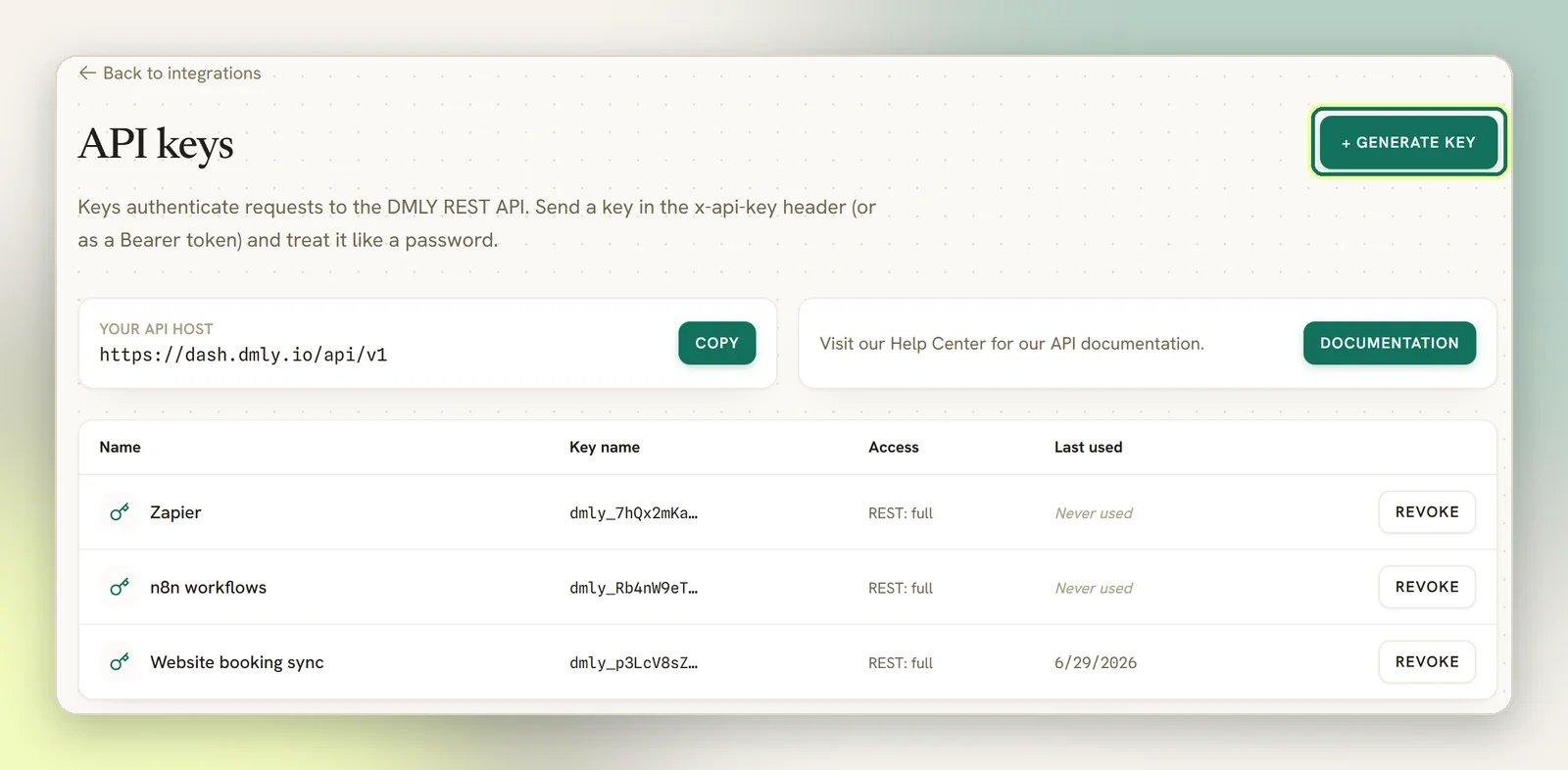
dmly_. Each key is scoped to one workspace. See
Authentication for the full walkthrough.2
Create the DMLY API credential in n8n
Add a DMLY API credential and fill in two fields:
- Base URL: defaults to
https://dash.dmly.io/api/v1. Leave it as-is unless you’re on a white-label or agency host, in which case enter your own domain (it must end in/api/v1, e.g.https://your-domain.com/api/v1). This matches the base URL described in the API introduction. - API Key: paste the
dmly_key. n8n stores it encrypted and sends it on every request as thex-api-keyheader.
3
Test the connection
Select Test. n8n calls
GET /account with the key; a green result means the key is
valid and points at the right workspace. A 401 means the key is wrong or revoked.The DMLY action node
The DMLY node follows n8n’s Resource → Operation pattern. Pick a resource (what you want to work with), then an operation (what to do to it), and the node shows only the fields that operation needs. Operations follow the REST verbs (Get Many, Get, Create, Update, Delete) plus resource-specific actions like Send, Book, Approve, Refund and Void. Records are identified by their public UUID, exposed everywhere asid.
The node covers 24 resources. Grouped by what they do:
Because the node mirrors the REST API one-to-one, the per-endpoint detail (every field, every
filter, every response shape) lives in the API reference. Reach
for it whenever you need to know exactly what an operation expects.
Examples
1
Create a contact
Resource Contact, operation Create. Set Name, then open Additional Fields
for phone (E.164), email, tags, source, lifecycle stage or a channel identity. The node
returns the new contact with its
id.2
Send a WhatsApp message
Resource Message, operation Send. Give the Contact ID and a Type (text,
image, video, audio, file or template), then the body or media in Additional Fields.
For a WhatsApp template outside the 24-hour window, set Type to
template, supply the
Template ID and its ordered Parameters. To attach media you host, upload it first
with Resource Media → Upload.The DMLY Trigger node
The DMLY Trigger starts a workflow when DMLY sends a webhook: a contact is created, a message arrives, an appointment is booked, an invoice is paid, and so on. A workspace can have several webhook endpoints under Configurations → Integrations → Webhooks, and each one gets the events. The REST API, and so this node’s Automatic mode, manages only one of them: the workspace’s first webhook endpoint. The node offers two ways to work with that.Automatic mode (recommended)
In the default Automatic mode you never touch the DMLY dashboard. While the workflow is active, the node registers its own production URL, your selected events and a freshly minted signing secret with DMLY; when you deactivate the workflow, it removes the subscription again.1
Add the node and pick events
Drop in DMLY Trigger, choose your DMLY API credential, and open Event Names or
IDs. The list is loaded live from your workspace (the same catalogue of webhook topics
the API exposes), so pick one or more, such as
contact.created, message.received,
booking.created or invoice.paid.2
Scope message events to a channel (optional)
Channel Scope limits message-lifecycle events to a single channel: All Channels
(default), WhatsApp, Facebook, Instagram, SMS, TikTok or Telegram. It’s ignored by
non-message events.
3
Activate the workflow
Activating registers the subscription in DMLY automatically. n8n must be reachable at a
public HTTPS URL; DMLY rejects private and
localhost hosts. n8n Cloud already
qualifies; a self-hosted n8n has to be published to the internet or fronted by a tunnel.Because the subscription is a singleton, if the dashboard webhook or another workflow
already owns your workspace’s webhook, the node tells you rather than silently taking it
over. Free the existing subscription first, or use Manual mode below.
Manual mode
Switch Registration Mode to Manual when the DMLY dashboard should keep ownership of the webhook, when you’re fanning one endpoint out to several workflows, or for local development behind a tunnel. The node only listens; you register its URL yourself.1
Copy the node's Production URL
Open the DMLY Trigger node and copy its Production URL.
2
Register it in DMLY
In DMLY, go to Configurations → Integrations → Webhooks, add that URL, subscribe to the
topics you want, and connect. DMLY generates a 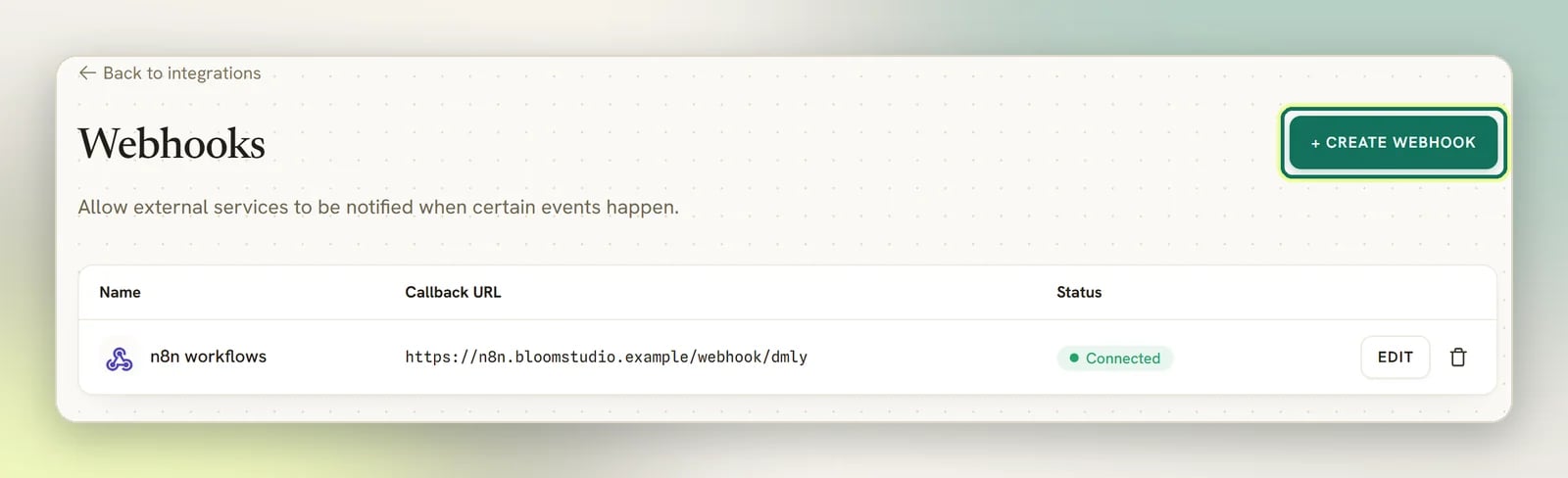
whsec_ signing secret; reveal and copy
it.3
Paste the signing secret
Paste the
whsec_ secret into the node’s Signing Secret field so it can verify
deliveries.Signatures and duplicates
Every delivery carries anX-Salesbot-Signature (HMAC-SHA256 of the raw body). The node
verifies it by default (using the secret it minted in Automatic mode, or the one you
pasted in Manual mode) and rejects anything that doesn’t match. Leave Verify Signature
on outside of testing. The node also filters each delivery against the events you selected on
it, so a shared subscription (one carrying more topics than this workflow wants) only fires
the workflow for the topics it cares about. That matters most in Manual mode, where the
dashboard or another consumer owns the subscription.
Prefer the raw nodes? Still fine
You don’t have to use the node. n8n’s generic Webhook and HTTP Request nodes talk to DMLY directly, and that’s still a good fit for one-off calls or when you’d rather not install a community node.- Events in: point a DMLY webhook (Configurations → Integrations → Webhooks) at an n8n
Webhook trigger node. DMLY waits 8 seconds for a
2xxacknowledgement, and the Webhook node answers immediately by default, so leave it that way and do the slow work in later steps. Verify theX-Salesbot-Signatureheader before trusting a payload, and deduplicate on the envelopeidsince deliveries are at-least-once. Full detail: Webhooks. - Actions out: an HTTP Request node calls the REST API
with your
x-api-keyheader. Lists paginate with?per_page(capped at 100), so page through for a full extract.
The Zapier tile in DMLY is not the way in for n8n; it exists for Zapier’s own
subscription handshake. Use the DMLY Trigger node, or the Webhooks tile for the raw
path.
Next
REST API
Every endpoint the action node mirrors: fields, filters and pagination.
Webhooks
The signed envelope, the headers, retries, and every topic the trigger can subscribe to.