

Turn it on
Two of the three steps happen in the Paystack dashboard, because Paystack decides which payment methods its checkout offers. DMLY only decides which of those a given link is allowed to use.1
Tick Bank Transfer in Paystack
In the Paystack dashboard, go to Settings → Preferences → Accept payments via and tick
Bank Transfer. It is a self-service checkbox and it applies to your whole Paystack account:
once it is on, every Paystack checkout offers transfer alongside card. Untick it later and every
transfer-only link from DMLY stops working, so leave it on.
2
Request a Trading Name
Still in Paystack, go to Settings → Preferences → Virtual Accounts and request a Trading
Name. Until Paystack approves one, the account your client transfers to is named PAYSTACK
CHECKOUT, which is confusing for someone expecting to pay your business. Approval takes time,
so ask early; transfers work either way.
3
Pick Bank transfer only on the step
In DMLY, open the flow in the builder and select a Request Payment or Send Payment Link
step (both sit in the Finance group, and both carry the same picker). Set Payment
method to Bank transfer only. The option is only offered when the step will mint on
Paystack or Monnify, so if your default gateway is something else, pick Paystack under
Gateway first. On Monnify the picker also offers Account number in chat (automatic): a
one-off account number sent straight into the chat and confirmed by Monnify’s webhook, with no
I’ve paid button. Outside the 24-hour window,
dmly_payment_request carries Monnify’s page
instead.
Set Currency to the one your Paystack account settles in: NGN in Nigeria, GHS in Ghana.Leave Payment method on Any enabled method and the link opens Paystack’s normal
checkout, where the client chooses between card and transfer. Bank transfer only removes
the choice and opens the page on the account details directly.The picker lives on those two automation steps, and on the REST API’s payment-links endpoint
through its
channels field. An invoice’s own Payment link & QR, the
Request payment action in the inbox and a booking’s payment link all open Paystack’s normal
checkout. Once Bank Transfer is ticked the client can choose Transfer there too; they are
simply not held to it.What the client sees
On WhatsApp the step sends your Message (or, if you leave it blank, a short line offering a secure link to pay the amount by bank transfer) with a Pay by transfer button; rename it under Button text if you like. Tapping the button opens a Paystack page that already shows the bank name, the account number and the amount, each with a copy button. The client switches to their banking app, pastes the details, sends the money and comes back. The page confirms the payment within seconds of the transfer landing, and the invoice in DMLY flips to Paid at the same moment. Under Finance → Payments the payment shows its method as Bank transfer. Three things about that account matter, and they are worth telling a client who has not paid this way before:- It exists for this one payment. Paystack issues a fresh account number per transaction. A client who saves it and sends a later bill to the same number is paying an account that no longer exists, and that money is refunded to them.
- It expires 30 minutes after the page is opened. The clock starts when the client opens the link, not when you send it, so the link can sit in the thread until they are ready. A transfer that arrives after the window is refunded, and the client needs a fresh link; for an invoice, share its pay link again and it is re-minted for whatever is still owed.
- The amount must match exactly. Paystack accepts the amount on the page and nothing else.
Wrong amount, late or duplicate
Paystack accepts a transfer only when it matches the amount on the page exactly and arrives before the account expires. Anything else (short, over, late, or a second transfer to an account that has already been paid) is refunded to the sender automatically, within 24 hours. The client learns this on the page itself: a message that the amount was wrong and a refund is on its way, and a Retry button that lets them try again on the same page. Nothing changes in DMLY when that happens. The payment stays Pending, the invoice stays unpaid until an exact transfer lands, and no partial amount is recorded, so there is nothing for you to reconcile or refund. If the client insists they paid, the money is on its way back to them; it is not sitting with you or with Paystack. Paystack does tell us, and the refusal is written to Reports → Logs as Payment transfer rejected, with the reason Paystack gave (usually an incorrect amount) and the payment it belongs to. That is where to look when a client says they sent the money and nothing settled.What a transfer costs. Paystack charges 1% of the transaction, capped at ₦300, against
1.5% + ₦100 capped at ₦2,000 for a card. So a transfer is the cheaper rail on anything above
roughly ₦20,000, and never costs more than ₦300 however large the payment.
Use your own bank account instead
Not every business can take Paystack transfers. Your Paystack account may still be under review, you may be outside Nigeria and Ghana, or you may simply want the money landing straight in your own account. For that, DMLY sends your bank details in the chat and lets you confirm each transfer yourself. This is the manual route: nothing confirms the money except you.1
Save your bank details
Go to Finance → Settings → Gateways and fill in Bank account for manual transfers:
switch it on, then enter Bank name, Account number and Account name.
Instructions is optional and is added to the end of every message, for example how long
you hold a slot while waiting. Save. No gateway needs to be connected for this to work.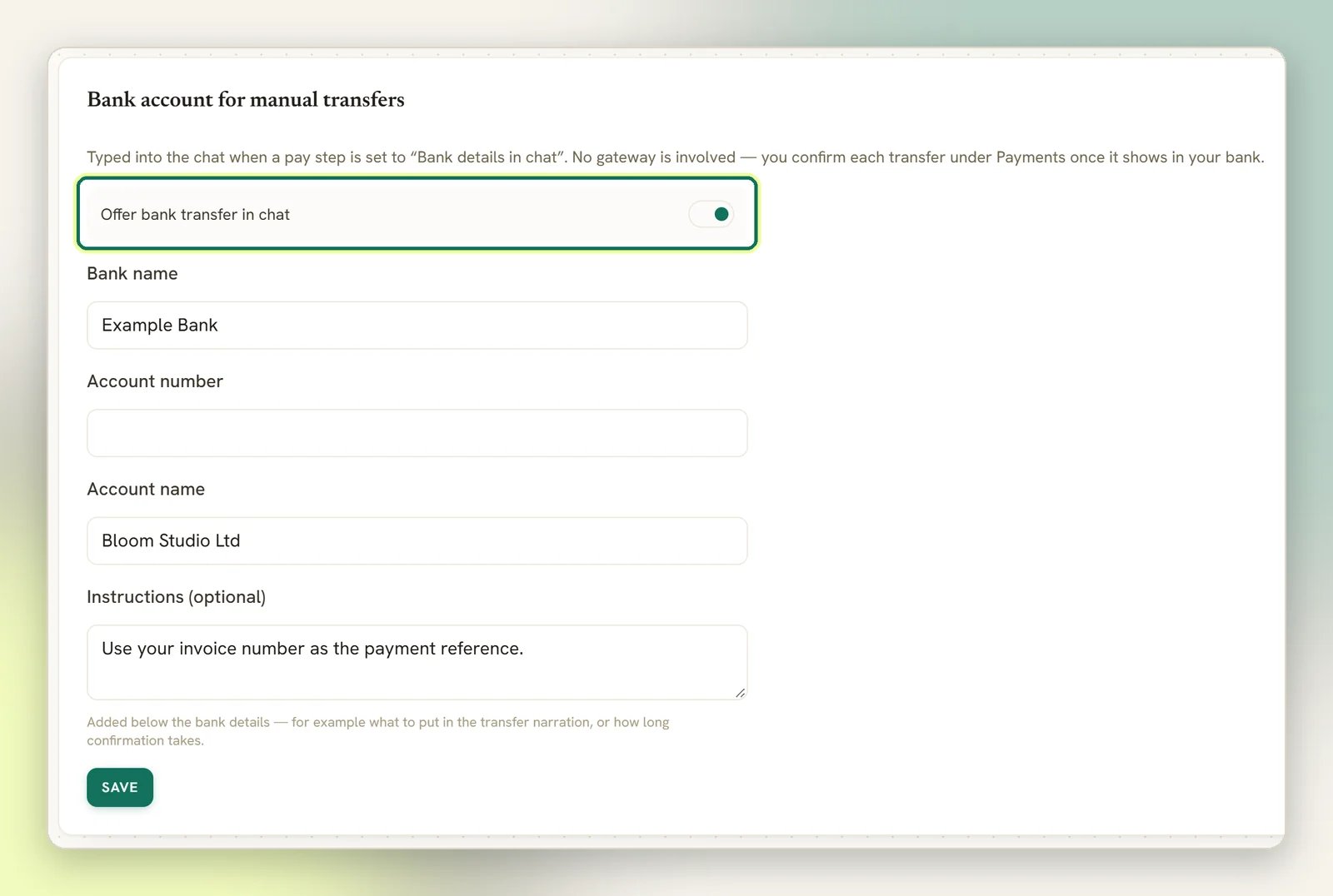
2
Pick Bank details in chat on the step
On a Request Payment or Send Payment Link step, set Payment method to Bank details in chat (manual). Gateway can stay empty.
3
The client gets your details and an I've paid button
The message shows the amount, your bank, the account number on a line of its own so it can be
long-pressed and copied, the account name, and a reference beginning
BT- for the client to
quote on the transfer. Below it is an I’ve paid button (rename it under Button text).
The flow waits there. When the client taps the button, or replies paid, DMLY thanks them,
says you will confirm shortly, and moves on.4
Confirm or reject under Finance → Payments
The payment appears under Finance → Payments as Awaiting transfer, changing to
Customer says paid once the client taps the button, and your team gets a Transfer
claimed notification. Find the reference on your bank statement, then open the row’s menu and
choose Confirm transfer or Reject transfer. Both need the same permission as recording a payment.Confirm transfer marks the payment Succeeded, settles the invoice and fires the Payment
succeeded trigger, so the client gets the same receipt and follow-ups as any other payment.
Reject transfer marks it Failed and leaves the invoice open. The dashboard records no note
with it, so keep your own record, then message the client or send a fresh request.
Let the client choose
Once you have both a gateway connected and your own bank account saved, a step can put the choice to the client rather than you deciding for everyone. Set Payment method to Let the customer choose. The client gets a short message — How would you like to pay NGN 25,000.00? — with Card and Bank transfer buttons. Tapping Card mints the usual gateway link. Tapping Bank transfer sends your own account details with the I’ve paid button, exactly as the manual route does, and you confirm it the same way. Typing card or transfer works too, for channels with no buttons. The step works this out when it runs, per client, so it keeps doing the right thing as your setup changes:
If the client’s 24-hour WhatsApp window is closed, no question is asked. The step goes straight
to the transfer option: your saved bank account, or the gateway’s in-chat account number where
that applies. Those clients are not offered card.
The question is only worth asking when the answers differ. A gateway checkout already shows card
and transfer side by side, so DMLY will not ask and then send the client to a page that asks
again. The second answer is your own account — money in it instantly, no fee, no settlement
wait — which a checkout cannot offer.
Reaching a client who has not messaged you
WhatsApp only lets a business send its own words for 24 hours after the client’s last message. Outside that window nothing but an approved template is delivered — and a deposit request usually falls outside it, because the booking came from your public booking page and the client has never messaged you. Two templates cover this, and DMLY sends them for you when the window is shut:
Find both under WhatsApp → Templates. New workspaces are given them; on an existing workspace,
install each one from that page and wait for Meta to approve it. Until then a payment request
outside the window is simply not delivered, which is what happened before these existed.
Only one of these is sent per flow run. A flow that already stands in with a template of its own —
Invoice payment reminder does, with
dmly_invoice_sent — does not get a second one stacked on
top.When something looks wrong
The link opens a card form instead of the account details
The link opens a card form instead of the account details
Three causes. Either Bank Transfer is not ticked under Settings → Preferences → Accept
payments via in the Paystack dashboard, or the link was not minted on Paystack at all:
Bank transfer only is a Paystack and Monnify feature, so a step whose Gateway resolves to Stripe,
PayPal or another provider mints that provider’s ordinary checkout. Check the step’s Gateway
and the default gateway under Finance → Settings → Gateways.With the box unticked, Paystack either ignores the restriction and offers card, or refuses to
mint the link. In the second case the Paystack tile under Configurations → Integrations shows
the error Paystack returned, and the flow leaves the step through its FAILED output, so wire
that output to a human rather than leaving the client at a dead end.The third cause: on a Send Payment Link step in invoice mode, Bank transfer only is
dropped in two cases. With tips on, the link opens DMLY’s tip page, which then mints an
unrestricted checkout. And if the invoice already has an open link (for example one made from
Payment link & QR), that link is reused as it is. Amount mode and Request Payment are not
affected.
The client says they paid but nothing arrived
The client says they paid but nothing arrived
Three things to check, in order. Did they pay within 30 minutes of opening the page? A later
transfer is refunded. Did they send the exact amount? Anything else is refunded, and the page told
them so with a Retry button. Then look under Transactions in the Paystack dashboard: a
successful transfer appears there within seconds, and if it is there but not in DMLY you have a
webhook problem, covered in
What a failed webhook means.Whatever the cause, don’t record the payment by hand while you wait. If the transfer did
succeed, the webhook will record it, and the client would then show as having paid twice.
The account is named PAYSTACK CHECKOUT, not after us
The account is named PAYSTACK CHECKOUT, not after us
That is the name Paystack puts on every checkout account until you have an approved Trading
Name. Request one under Settings → Preferences → Virtual Accounts in the Paystack
dashboard. Nothing in DMLY changes it, and the money reaches your Paystack balance either way;
only the name the client sees is affected.
Related
Payments and gateways
Connect Paystack, pay links, payment statuses and what a failed webhook means.
Invoices
Send an invoice and share its pay link on WhatsApp.
Sell on WhatsApp
The Request Payment step end to end, from cart to cash.
Finance settings
Default currency, due days, numbering and the Gateways tab.