

- The channel is the one you’re currently on. There is no channel picker in the wizard. The broadcast uses your active channel, shown read-only on the Message step, and it’s fixed once the broadcast is created. Switch channel first if you’re on the wrong one.
- WhatsApp broadcasts must use an approved template. There is no message box for WhatsApp; you pick from your approved templates and fill in their variables. Facebook, Instagram, SMS and Telegram broadcasts use a plain message instead, with no template.
- Broadcasts aren’t available on Live Chat or TikTok. Only WhatsApp, Facebook, Instagram, SMS and Telegram can send them.
1
Choose your audience
Set Type to Contact to message a segment, or Retarget to re-message the
recipients of an earlier broadcast.For Contact, pick exactly one option: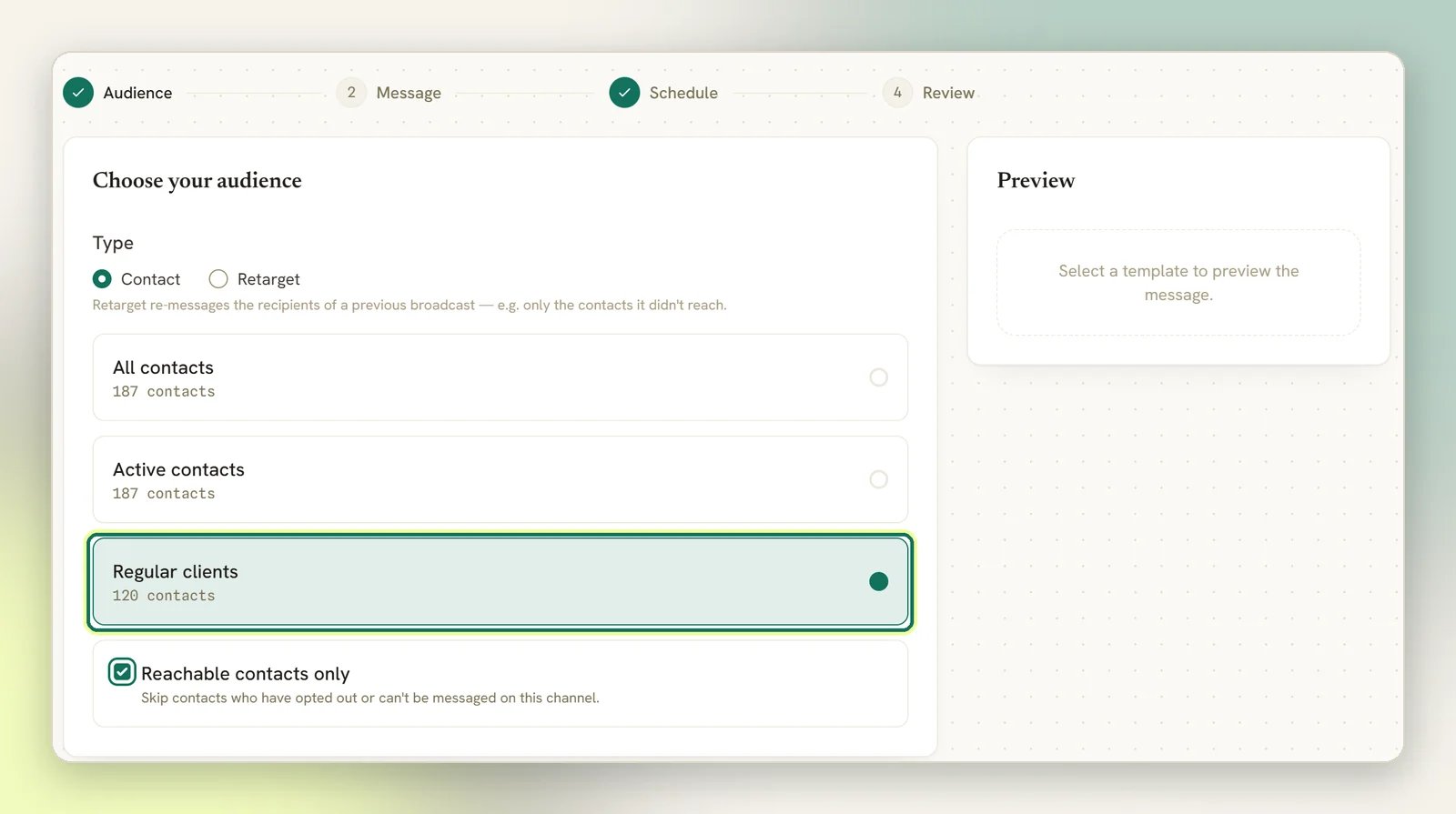
- All contacts
- Active contacts
- Any segment you’ve saved under Contacts → Segments
- On Facebook and Instagram only: Opted in — notifications and Messaging window open (24h)
- On Facebook only: Marketing subscribers, for a paid send. You don’t need to pick it yourself: choosing paid reach on the next step selects it for you.
2
Write or pick your message
Give the broadcast a Campaign name. It’s for you, and contacts never see it. The
Channel next to it is read-only.On WhatsApp, choose a Message template. Only approved templates appear; if the
list is empty or missing the one you want, use Create new template and see
Message templates. If the template has variables, a
Body parameters section appears with one input per variable
(Enter parameter 1, Enter parameter 2, and so on). Each one accepts a
personalisation token, so a parameter can be 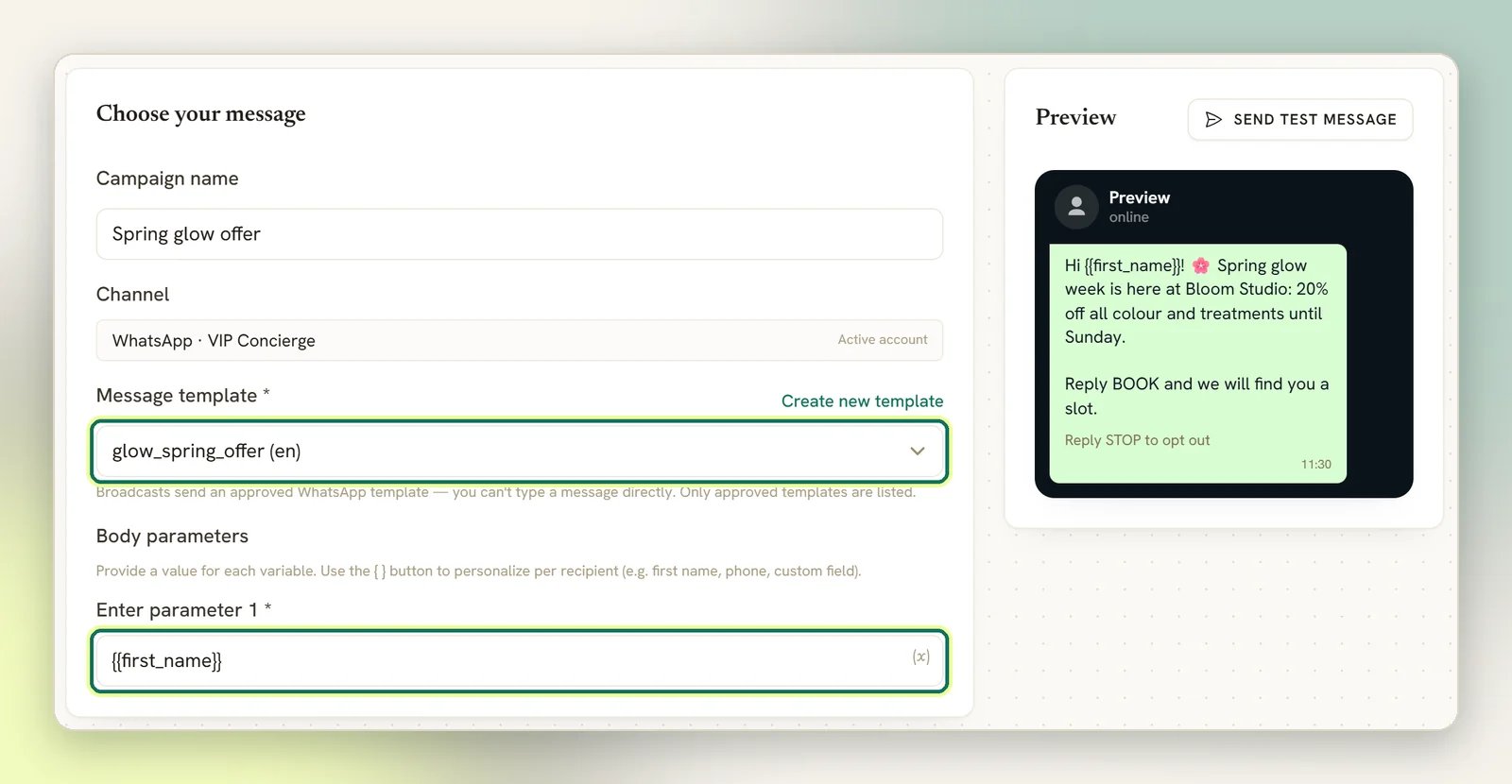
{{first_name}} or
{{custom.order_id}} and resolves per contact when the broadcast sends.{{first_name}} in the body. SMS has no messaging window. Long messages split into
multiple segments and cost more.On Facebook and Instagram, type the message directly. A standard send only reaches
people who messaged you in the last 24 hours, or who hold a notification opt-in; everyone
else is skipped.On Facebook you also choose a Reach. Standard message is the send above, which
Meta doesn’t charge for. Marketing Messages (paid) reaches people who subscribed to
your Page’s marketing messages, outside the 24-hour window, and Meta charges your ad
account for each one delivered. Each one that goes out also counts against your plan’s
broadcast allowance, like any other broadcast message. It needs a
connected Meta ad account
and asks you for a Budget, in that ad account’s currency. See who a marketing message
reaches and what it
costs. Instagram has no Reach choice, so
Instagram broadcasts are always standard.3
Schedule it
Choose Send immediately after approval or Schedule for later and set Send at.Once you pick Schedule for later, choose how that time is read: At this time sends
everyone at the same moment, in your account timezone from Settings, not your
browser’s. At this time in each contact’s timezone sends the same wall-clock time, but
staggered so each contact gets it at that time in their own timezone. See Which timezone it
uses for the full picture, including what
happens to contacts with no known timezone.A paid Facebook send (Marketing Messages (paid)) always goes out at one fixed time, so
the per-contact timezone option isn’t offered for it.An immediate broadcast goes out within about a minute. A time less than a minute away is
treated as immediate.Require team approval before sending holds the broadcast until someone approves it.
If you don’t have approval rights the checkbox is replaced by a note telling you the
broadcast will be submitted for approval before it sends; approval is applied
server-side either way.
4
Review and send
Review & send summarises the audience, message, schedule and approval state. A paid
Facebook send adds a Budget row with the amount, the currency and whether it is
Total for this campaign or Per day. Select
Create broadcast, or Submit for approval if you don’t have approval rights. You
land back on the broadcasts list, where the new broadcast appears with its status.A broadcast that needs approval sits at Pending approval and never sends until
someone with rights uses Approve & schedule on it.You can click any step at any time, so it’s easy to reach Review before everything is
filled in. The wizard won’t create an incomplete broadcast. A step only gets a tick once
it has everything it needs, and Review lists anything still missing under Add these
before you can create the broadcast:, using the same names as the fields. Selecting
Create broadcast then takes you to the first step with a gap instead of saving.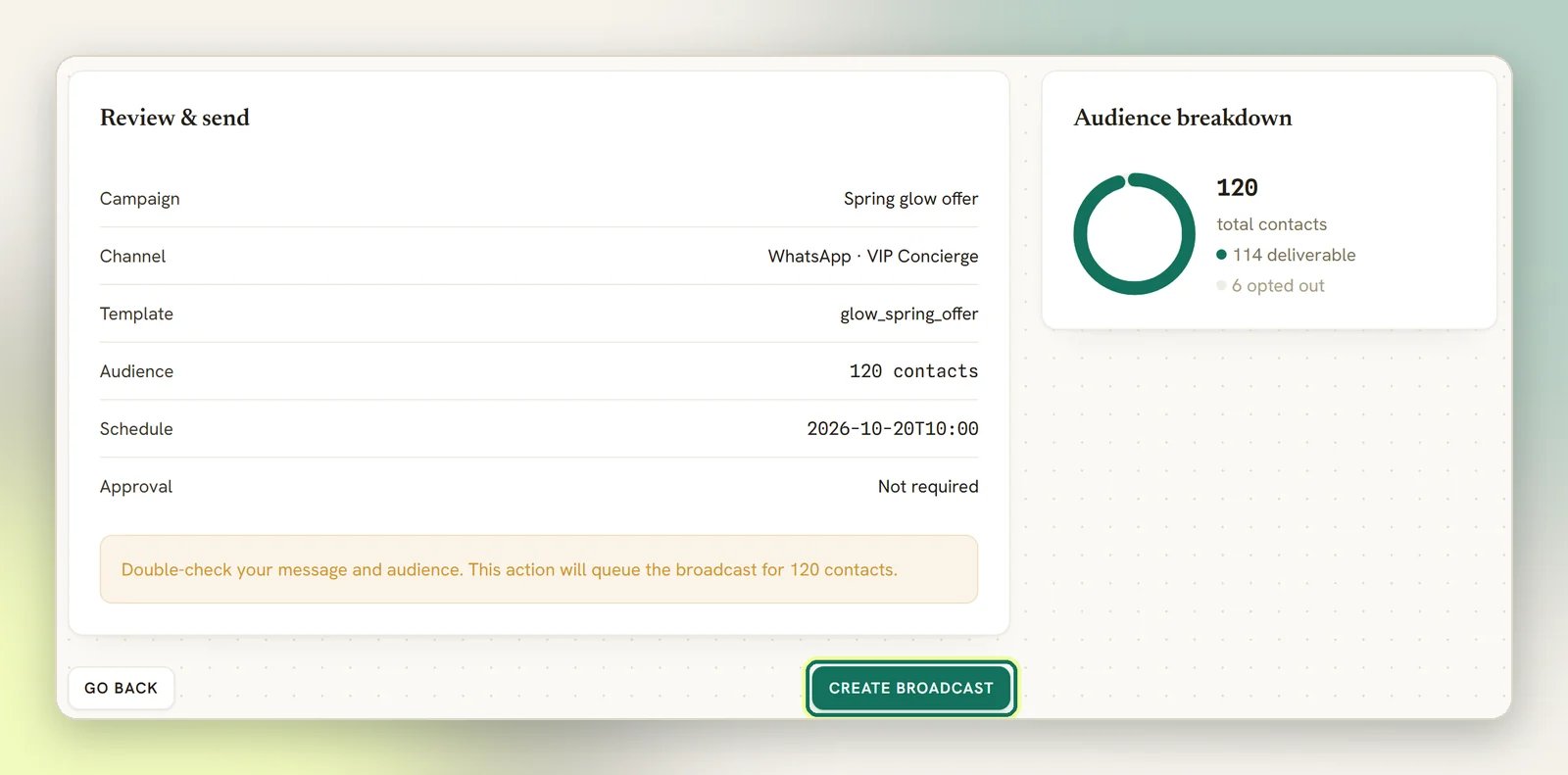
- A Campaign name.
- On WhatsApp: a Message template, a value for every Body parameters entry, and the Header file link or Header value if the template has a header that needs one.
- On Facebook, Instagram, SMS and Telegram: the message text.
- On a Facebook send with Marketing Messages (paid): a Budget above zero.
- For a retargeted audience: the earlier broadcast and the engagement type to retarget.
- With Schedule for later: a Send at time.
What “Reachable contacts only” actually does
Opted-out contacts never receive a message; every channel blocks them at the point of sending, whether or not you tick the box. What the box changes is the audience list. Leave it unticked (the default) and opted-out contacts are still pulled into the broadcast: they count towards the recipient total and then land in Failed. Tick it and they’re excluded up front, so your numbers reflect reality. The hint says it also skips contacts who “can’t be messaged on this channel”. It doesn’t. Closed messaging windows are not filtered out here; those contacts fail at send time instead. The paid Marketing subscribers audience is the exception: it always leaves opted-out contacts out, ticked or not.Audience breakdown, shown in the right rail on the Schedule and Review steps,
shows the audience size and the real number of contacts in it who have opted out.
Deliverable is the difference. For a saved segment it shows a dash until the count arrives.
Send test message sends a real WhatsApp template to one number, down the same path a real
recipient takes, so it catches the faults it is there to catch: a wrong parameter order, a
mangled placeholder, a template Meta has not approved. If it fails, the error names the fault
rather than giving you a code.Five things follow from it being a real send:
- It costs what a template costs, and it spends your plan’s broadcast allowance like any other template message.
- The number has to already be a contact on that channel. DMLY will not create one for a number it does not know, so message your WhatsApp business number from the test phone once first. Otherwise you are told: That number is not a contact on this channel yet.
- It appears in the Inbox, in that contact’s thread, because if they reply to it the conversation needs to hold what they are replying to.
- The broadcast remembers it. Its own page shows Last tested to the number, masked the way any contact’s number is, with the time. It is deliberately not counted as a recipient, so a tested broadcast never reports “1 delivered” before it has been sent.
- It is capped at 10 an hour per person, per workspace.
Retargeting an earlier broadcast
Set Type to Retarget, pick a Retarget broadcast and a Retarget engagement type: All Sent, All Delivered, All Read, All Replied, All Sent But Not Replied or All Failed. Only broadcasts already sending or sent on the current channel can be a source, and a broadcast can’t retarget itself. The audience is resolved when the broadcast sends, so no count is shown while you build it. Recipients are also narrowed to contacts reachable on this broadcast’s channel. Retargeting a WhatsApp broadcast from an SMS broadcast only reaches the overlap.After you save
- The broadcast is queued as Scheduled, whether immediate or for later. The sender picks it up on the next sweep, at most a minute after it’s due.
- An empty audience isn’t an error. The broadcast completes immediately with zero recipients.
- Every message sent is written into the contact’s conversation in the Inbox, so you can follow up on replies there.
- To change it, select Edit. Editing one that requires approval clears the existing approval; it has to be approved again.
- To stop it, use the menu on its row on the Broadcasts list: Pause while it is Scheduled or Sending, Resume once it is Paused, Cancel send in any of those three states, and Delete on anything that isn’t actively Sending. Cancelling marks every recipient not yet sent to as cancelled and can’t be reversed; messages already sent stay sent whatever you do. See Hold, cancel or delete a broadcast.
A WhatsApp broadcast failed for everyone
A WhatsApp broadcast failed for everyone
The most common cause is the template. It’s re-checked at send time, so a template that
Meta rejects or revokes between scheduling and sending will fail the whole broadcast.
Confirm the template still shows as approved, then create a fresh broadcast with it.
A broadcast saved with no template and no text fails the same way.
See WhatsApp rules and limits.
Delivered and Opened are stuck at zero
Delivered and Opened are stuck at zero
Those counters only move for WhatsApp (delivered and read) and SMS (delivered). Facebook,
Instagram and Telegram broadcasts never report them, so they stay at zero however well the
broadcast performed. Analytics covers what each channel reports.A paid Facebook send is the same: its counters stay at sent. Meta’s Delivered and
Read rate figures for it appear in the Paid campaign panel on the broadcast’s page
instead, once Meta reports them.
Message templates
Create and submit the approved WhatsApp templates a broadcast needs.
Audiences
Segments, retargeting, and who ends up in a broadcast.
Scheduling
Timing, timezones and approval holds.
Analytics
Read the results, and what each channel actually reports.