

Broadcasts aren’t available on Live Chat or TikTok. Switch to WhatsApp, Facebook,
Instagram, SMS or Telegram before creating one.
Pick a segment
With Type set to Contact, you choose from:- All contacts: every contact reachable on this channel (by primary channel or a channel identity).
- Active contacts: contacts whose status is active.
- Every saved segment in your workspace, listed by name.
- Opted in — notifications: contacts who gave Meta’s one-time notification opt-in.
- Messaging window open (24h): contacts who messaged you in the last 24 hours.
<count> contacts. That estimate is taken when you build the
broadcast; the real recipient list is expanded when it sends, so a scheduled broadcast picks
up contacts added in between.
An empty audience is not an error. The broadcast is simply marked Sent with zero
recipients.
Targeting by tag, stage, custom field or recency
The broadcast wizard has no filters of its own: no tag, no pipeline stage, no custom field. Anything more specific than the options above is built once as a saved segment under Contacts → Segments, then picked here by name. A segment works in two layers. The basic filters at the top are pipeline stage, tags to include, tags to exclude, and days since last activity. Below them, Conditions is a rule builder with groups and ALL/ANY matching that reaches much further: Custom field, lifecycle stage, source, birthday month, a single tag, marketing opt-in (despite the name, this checks whether the contact opted out, not whether they subscribed to paid marketing messages), total spend, last purchase, order count, loyalty points and credit balance. See Tags and segments. A twelfth condition, Reachable on channel, matches contacts who do or don’t have an identity on a channel you have connected. It rarely earns its place in a broadcast segment, because a broadcast’s audience is already limited to contacts reachable on the channel you are broadcasting on. It is more useful for cross-channel work, such as finding everyone on WhatsApp who is not on Telegram. A custom field can therefore decide who gets a broadcast. Add a Custom field condition, choose which field, and compare it with is, is not, contains, does not contain, has any value, is empty, greater than, less than, at least or at most. Keep the division of labour straight: the segment does the filtering, and the broadcast only points at the segment. There is still no custom-field box in the wizard.Opt-outs
This is the part to get right. A contact who has opted out never receives a broadcast. Every channel blocks them at the moment of sending, whatever audience you chose. That guard is not something you can switch off, and it is what keeps you compliant. What the audience does not do is remove them beforehand. Reachable contacts only is unticked by default, and it is the only thing that filters opted-out contacts out of the audience. Leave it unticked and opted-out contacts are still expanded into the recipient list. They get nothing, but they take up a recipient slot and land in your Failed count.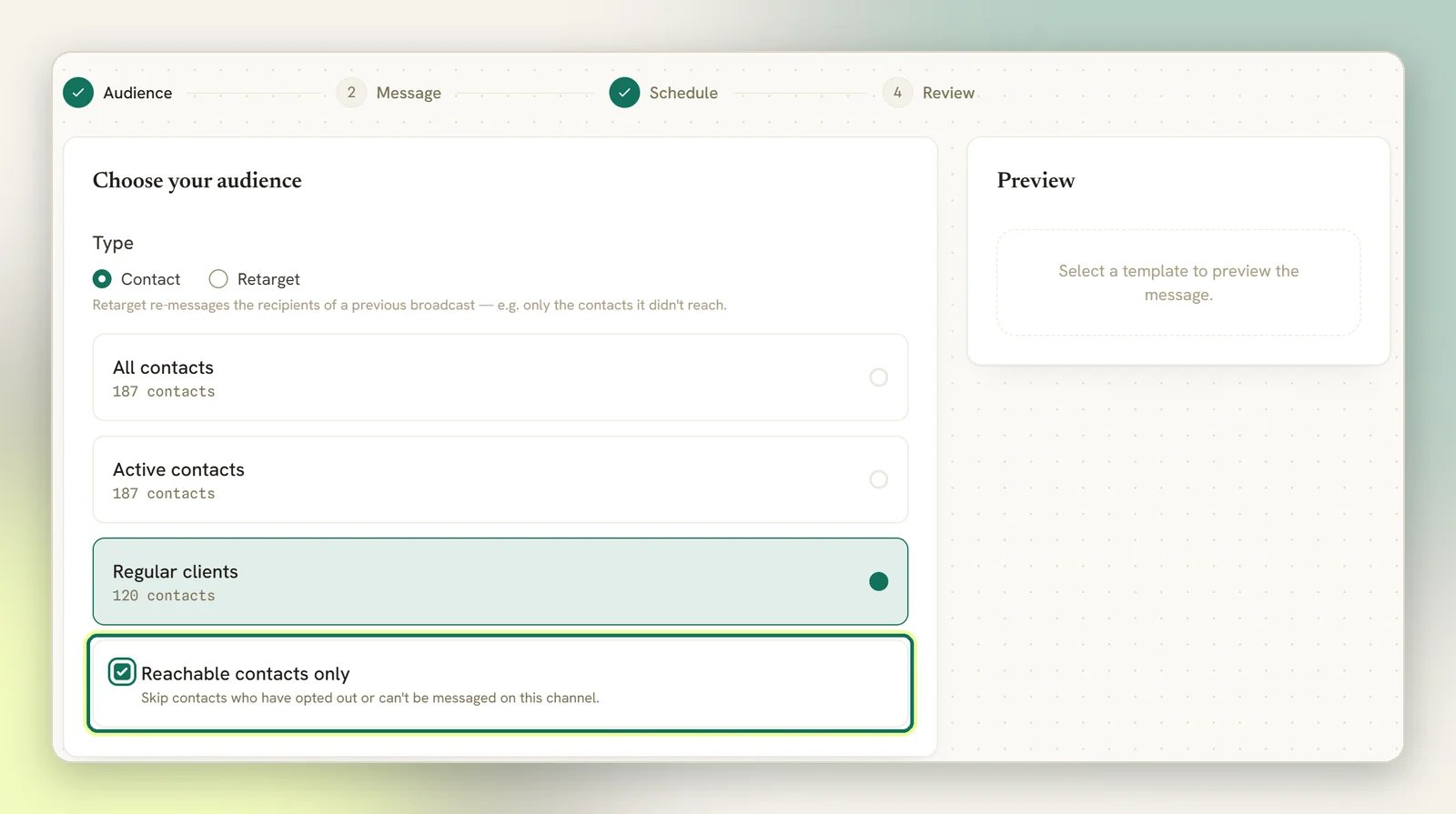
- Its hint says it skips contacts who “can’t be messaged on this channel”. It only excludes opted-out contacts. Contacts outside a messaging window are deliberately not excluded.
- The Audience breakdown donut shown on the Schedule and Review steps shows the
real number of opted-out contacts in the audience, in its
<count> opted outfigure. Deliverable is the audience size minus that number. These are the same contacts the send will block.
Unreachable contacts
Contacts in the audience who can’t actually be reached still consume a recipient row. What happens depends on why:
The specific reason a contact failed is recorded, and the broadcast page groups failures by reason
in a Why messages failed panel, as counts. Three places go further. The broadcast’s Recipients panel lists every contact; filter it by status (for example Failed) to see each one with its Reason. On WhatsApp, a template’s performance drawer has a Failed sends list naming
each failed contact with the reason and the date, though it covers every send of that template
rather than this one campaign; see Read broadcast
results. On Facebook and Instagram, the Messenger
delivery breakdown on the broadcast shows how many were reached in-window versus via an opt-in
versus skipped.
SMS and Telegram have no messaging window, so window-related failures don’t apply to them.
WhatsApp broadcasts use an approved template, which is what lets them reach contacts outside
the window. See WhatsApp rules and limits.
Facebook and Instagram notification opt-ins are spent automatically
Facebook and Instagram notification opt-ins are spent automatically
If a Facebook or Instagram contact is outside the 24-hour window but holds a notification
opt-in, the broadcast uses it to deliver the message. The opt-in is single-use: once spent
it’s gone, and that contact needs a new one before you can reach them outside the window
again. The Opted in — notifications segment targets exactly these contacts, so a
campaign to it burns the opt-in of every contact who was outside the 24-hour window at send
time; contacts still inside the window are reached normally and keep theirs.This one-time opt-in is not a marketing subscription. A contact who accepted Ongoing
marketing messages is in the Marketing subscribers audience instead, stays subscribed
until they stop it or it expires, and can only be reached through a paid
Marketing Messages broadcast.
Retarget a previous broadcast
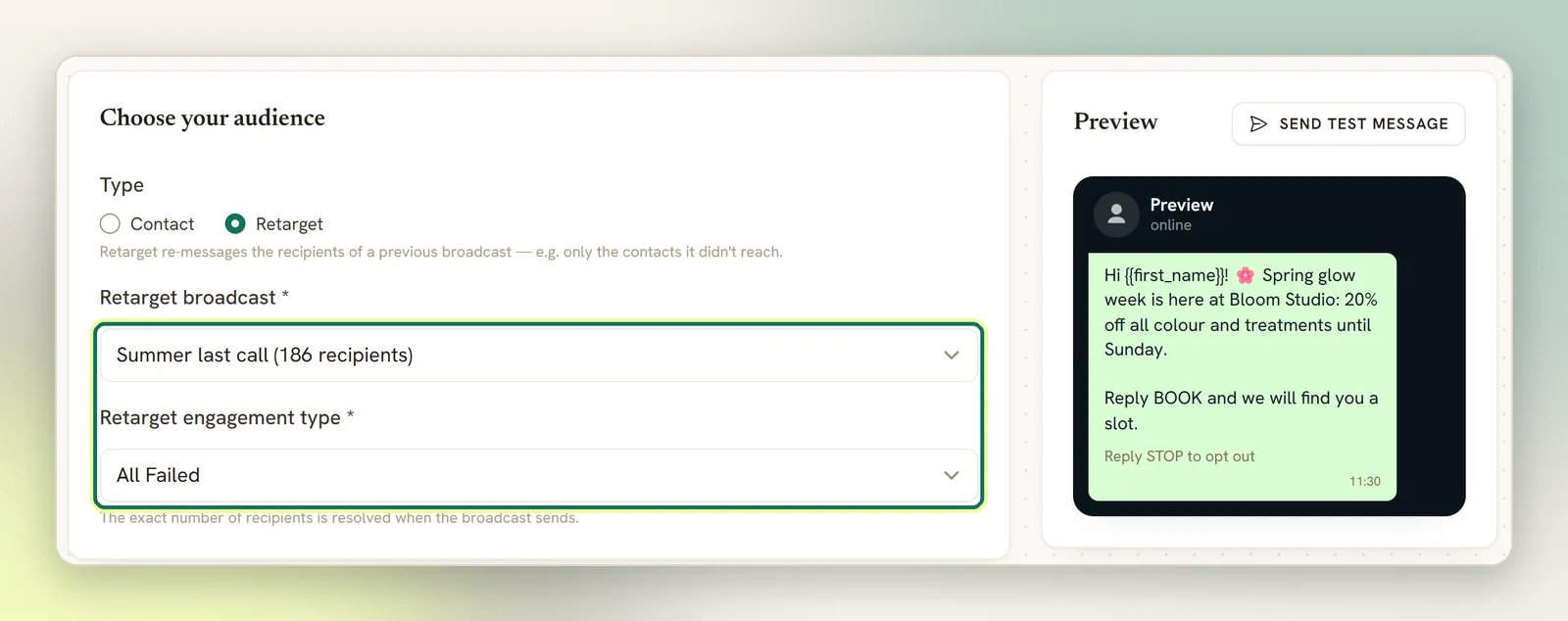
Set Type to Retarget to re-message the people an earlier campaign reached, filtered by what they did with it. Pick a Retarget broadcast and a Retarget engagement type:
Only broadcasts that are sending or already sent can be a source, and only ones on the same
channel (the 100 most recent). You can’t retarget a broadcast at itself.
Retarget audiences show no count in the wizard: the list is resolved from the source broadcast
when this broadcast sends, and then narrowed to contacts you can reach on this channel.
Resending a broadcast that partly failed
A campaign with a big Failed count doesn’t need rebuilding from your segment. All Failed is the resend button, three steps long:1
Fix what made them fail first
A resend into the same wall fails the same way. On WhatsApp the usual culprit is the
template, so check its status under
message templates; on SMS, check your gateway and
Logs. And if the source broadcast went out without Reachable
contacts only ticked, remember its Failed count includes every opted-out contact;
those will simply fail again, by design.
2
Create a new broadcast, retargeting the failed set
Select New broadcast, set Type to Retarget, pick the campaign under
Retarget broadcast, and choose All Failed as the engagement type. There’s no
resend action on the sent broadcast itself; this wizard path is the workflow.
3
Write the message and send
The message is written fresh: nothing is copied from the source campaign, so paste and
adjust what you want repeated. The failed list is pulled from the source broadcast at
send time, so recipients whose situation was fixed in between are picked up correctly.
Next
Write the message
Campaign name, template or text, and personalization.
Tags and segments
Build the saved segment you’ll broadcast to.
WhatsApp rules and limits
Why WhatsApp broadcasts need an approved template.
Data and privacy
How contacts opt out and what that means.