

schedule is a Draft, and shows on the list with that status until it is scheduled
or approved.) Two things hold it back: team
approval, and Pause.
A queued broadcast can be paused, cancelled or deleted from its row on the Broadcasts list,
and a paused one resumed. None of that recalls a message already sent, so it is still worth
checking your audience and message before you save. See Hold, cancel or delete a
broadcast for which control works in which status.
Set the send time
Scheduling is the third step of the broadcast wizard, after you have chosen your audience and written your message.1
Open the Schedule step
In the broadcast wizard, go to Schedule. It asks When should it send?
2
Choose immediately or later
Send immediately after approval queues the broadcast as soon as you save it.Schedule for later reveals a Send at field, plus a choice of whose timezone it’s read
in. See Which timezone it uses below. Pick a date and time at
least a couple of minutes ahead: a time under a minute away is treated as immediate.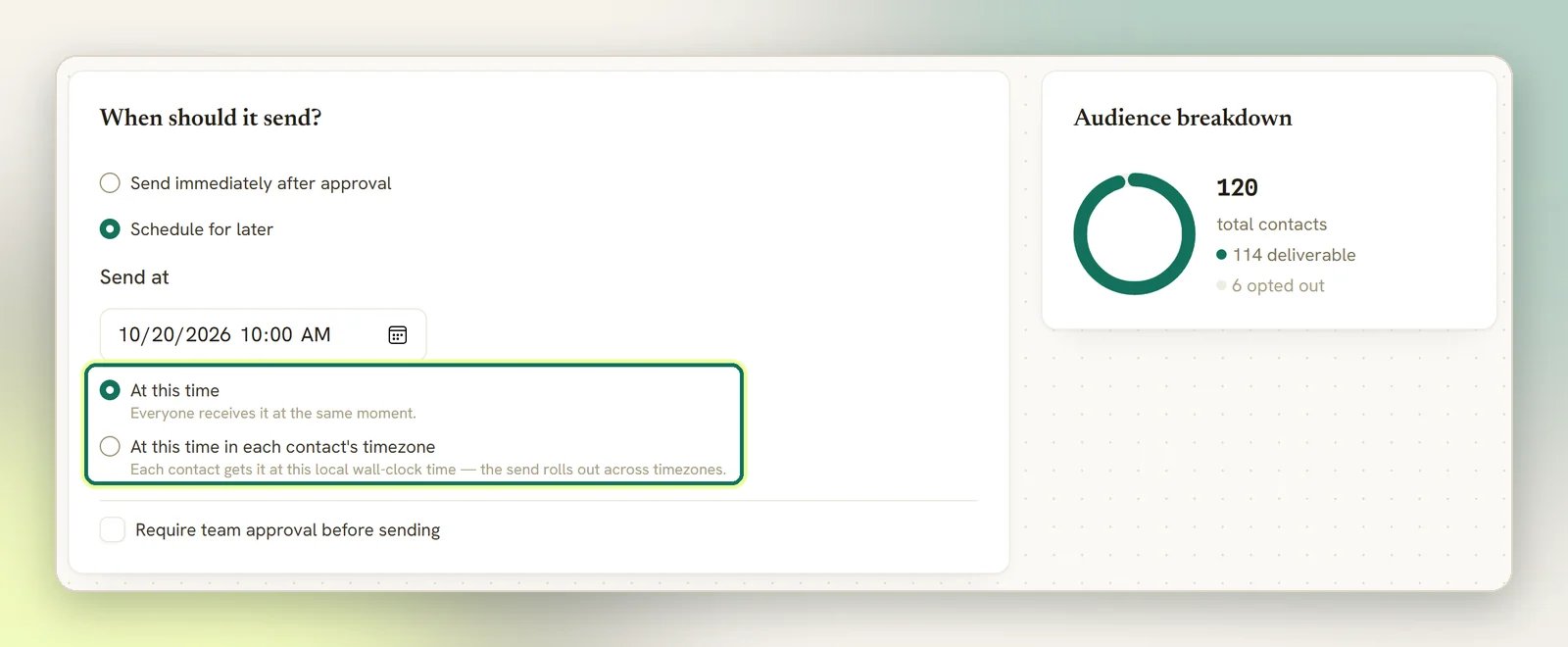
3
Decide on approval
Tick Require team approval before sending to hold the broadcast until someone signs it
off. Leave it unticked to let it send on time without review.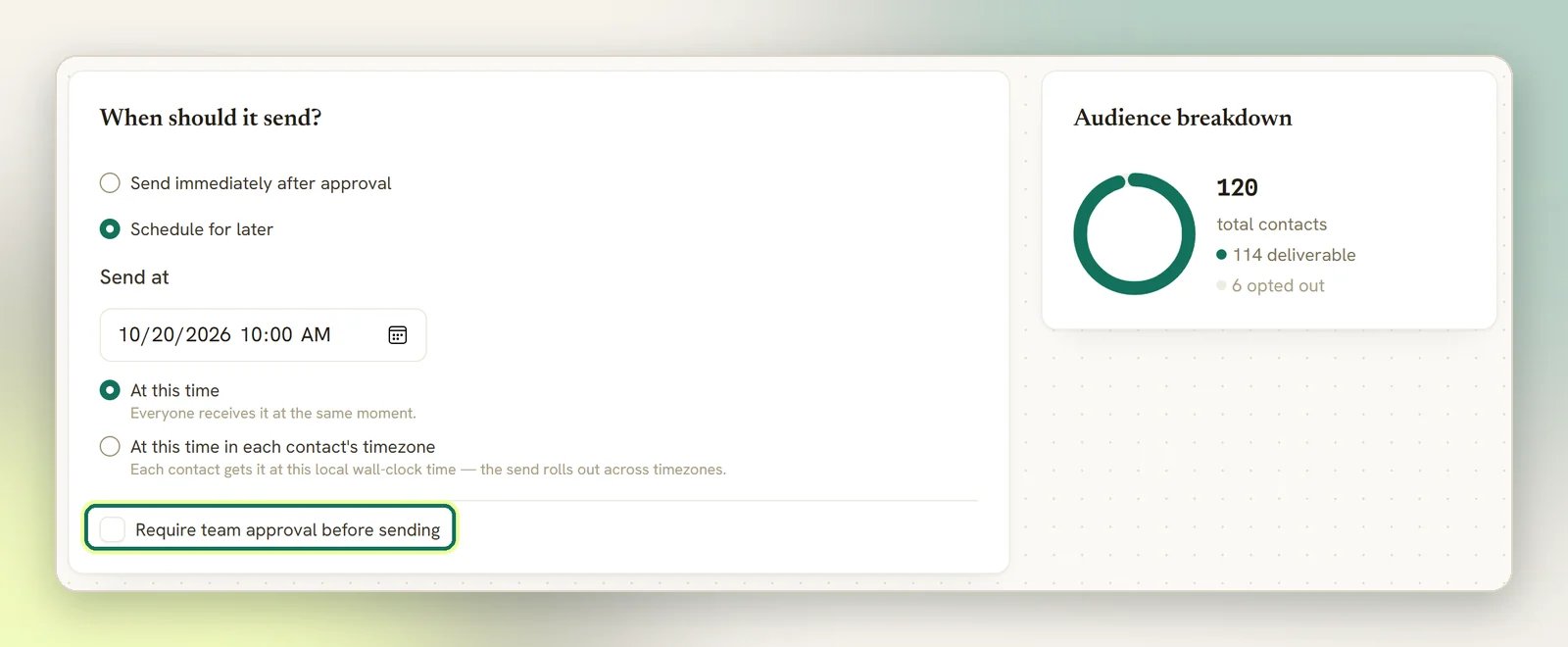
4
Review and save
On Review, the Schedule line shows either your send time or Immediately, and
Approval shows Required or Not required. Select Create broadcast (or Submit
for approval if you don’t have approval rights) to queue it.You land back on the Broadcasts list, where the new broadcast appears with its status.
Saving is not the same as sending. Even Send immediately after approval goes out on the
next sweep, so allow up to a minute before the first message leaves.
Which timezone it uses
Next to Send at, when you choose Schedule for later, DMLY offers two ways to read that time: At this time is the default. Send at is read in your own account timezone, not your browser’s, and not any contact’s. If your account is set to London and you type 09:00 while travelling in Dubai, the broadcast sends at 09:00 London time, for every recipient, at the same moment. Daylight-saving changes are handled for you. Your account timezone is set on your profile, under Preferences. At this time in each contact’s timezone sends the same wall-clock time, but staggered per recipient: type 09:00 once, and each contact gets it at 09:00 in their own timezone rather than yours. Contacts in earlier timezones receive it first; contacts further behind get it as their own morning arrives. A few things follow from that:- Sending can take over a day. The widest gap between real-world timezones is about 25 hours, so the last wave can leave a little more than a day after the first. DMLY works out the matching UTC instant for every contact, then releases them in staggered waves as each timezone reaches your chosen time. The broadcast’s status stays Sending (with a Rolling out across timezones note showing how many have gone out) until the last wave leaves. See What happens at send time.
- A time that’s already passed locally sends right away. If you schedule for 09:00 and it’s already 3pm in a contact’s timezone by the time you save, that contact is sent immediately instead of waiting until the next day.
- Contacts with no known timezone get a fallback time instead of their own. If any of your audience have none on file, DMLY tells you how many before you send.
A contact’s timezone is detected automatically, from their browser, the first time they book an
appointment on your public booking page; there’s nowhere in DMLY to set it by hand. A contact
who has never booked with you, or one added by CSV import or the API, has no timezone yet and
falls back with everyone else.
What happens at send time
Nothing about the audience is fixed when you schedule; it is worked out at the moment the broadcast runs.The audience is resolved live
Your segment is re-queried at send time, so anyone who joined it after you scheduled is
included, and anyone who left is not. Retarget audiences are resolved from the source
broadcast the same way.
Messages go out in batches
DMLY builds the recipient list, then sends in batches. Large audiences take a few minutes:
each channel has a per-minute send ceiling, and throttled batches retry automatically.
- WhatsApp templates are re-checked for approval. If Meta revokes your template between scheduling and sending, every message fails. See Message templates.
- Facebook and Instagram contacts outside the 24-hour window are skipped unless they opted in to notifications. See Broadcast rules and limits.
- Contacts who opted out receive nothing. They are still counted in the recipient total and show up as failures, which is why Reachable contacts only on the Audience step is worth ticking. See Audiences.
- An empty audience is not an error. The broadcast is simply marked as sent, to nobody.
Approval holds the send
If Require team approval before sending is on, the broadcast will not send at its scheduled time (not even a minute late) until it is approved. It waits indefinitely. To approve one, open Broadcasts, find the broadcast marked Pending approval, and select Approve & schedule. If its send time has already passed, it goes out on the next sweep. Only admins and members with broadcast-approval rights can approve. Members without those rights aren’t offered the choice at all; their broadcasts always require approval.Editing a broadcast that still requires approval clears any approval it already had. Whoever
signed it off has to approve the edited version again.
Hold, cancel or delete a broadcast
While a broadcast is still waiting, open it from Broadcasts and select Edit. You can change the audience, the message and the send time. The channel is fixed for the life of the broadcast and cannot be changed. To stop it rather than change it, use the menu on its row on the Broadcasts list. Which controls you are offered depends on the status the broadcast is in at that moment: Pause appears on Scheduled and Sending. A scheduled broadcast held this way doesn’t go out when it’s due. A sending one halts: recipients already handed to the channel have gone, the rest stop where they are. The broadcast reads Paused until you decide. Resume appears on Paused, and only there. A broadcast that never started goes back to Scheduled. One that was mid-send goes back to Sending, and the recipients the pause stranded are queued again; contacts scheduled in their own timezone still wait for their own local time.Approving a paused broadcast does not resume it. Approval only lifts the approval hold: the
broadcast stays Paused and still needs Resume to go out. They are two separate releases,
so something a colleague deliberately stopped is never restarted by a sign-off. A Cancelled
or Sent broadcast cannot be approved at all; the action is refused with This broadcast can
no longer be approved.
Pause, Resume and Cancel send need the Send / schedule broadcasts permission, and Delete needs
Delete broadcasts. A member without one doesn’t see that control on the row. See Roles and
permissions.
Next steps
Audiences
Choose who a broadcast reaches, and why opt-outs still count.
Analytics
See what was delivered after your broadcast runs.