

These are your own products, kept in DMLY. They are not the same as products synced from a
Shopify or WooCommerce store; those are a separate mirror with their own triggers, and
nothing you do on this tab touches them. If you are building around
store_inventory_low or
store_product_back_in_stock, you are working with the store mirror, not with these.Add a product
1
Open the Products tab
Go to Offerings and select Products.
2
Create it
Select New product and give it a name and a price.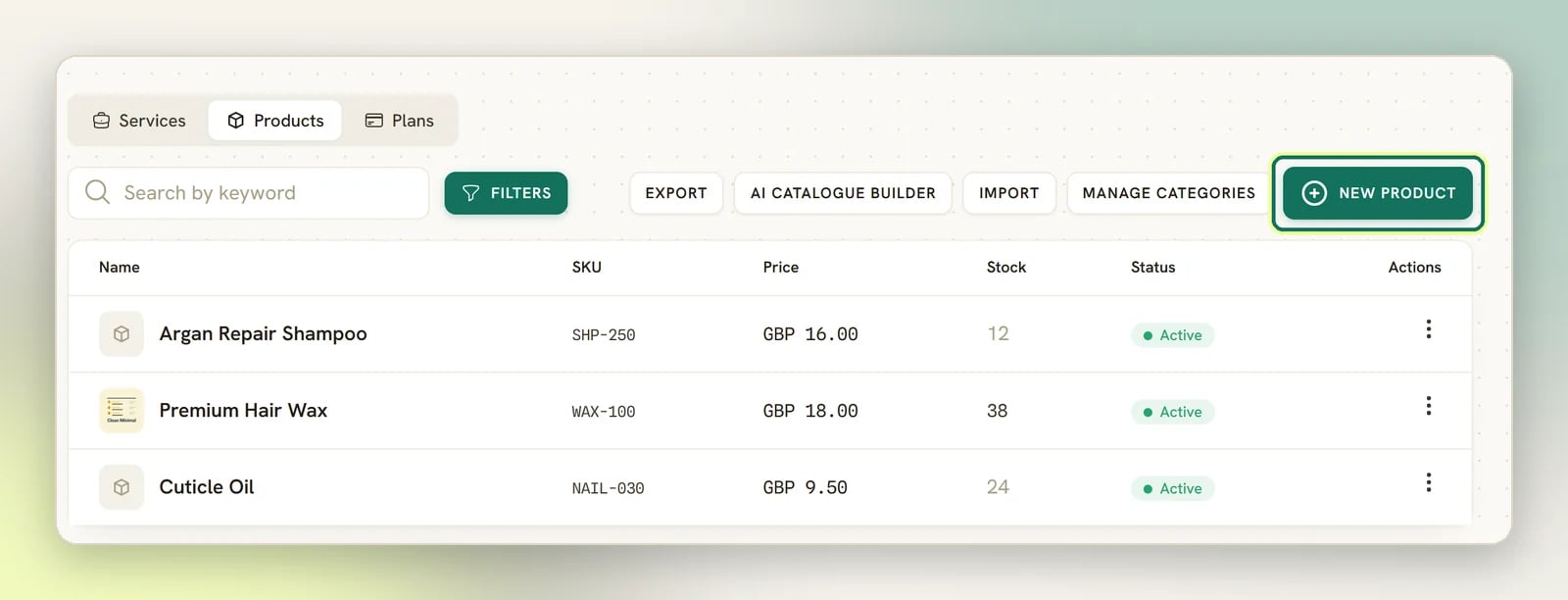
3
Set tax
Set Tax rate (%), or leave it blank to fall back to the default tax rate from
Finance settings. Turn on Price includes tax if the price you typed
already has tax in it.
4
Fill in the rest
SKU, Image, Cost price and a category are all optional. Cost price is private to
your workspace: it never appears to a client, and it is included in the CSV export, so you
can work out margin yourself.
Track stock
Stock tracking is off until you ask for it. Turn on Track stock on a product and set its Stock quantity; leave it off for anything you never count, like a digital item or something you order in per client.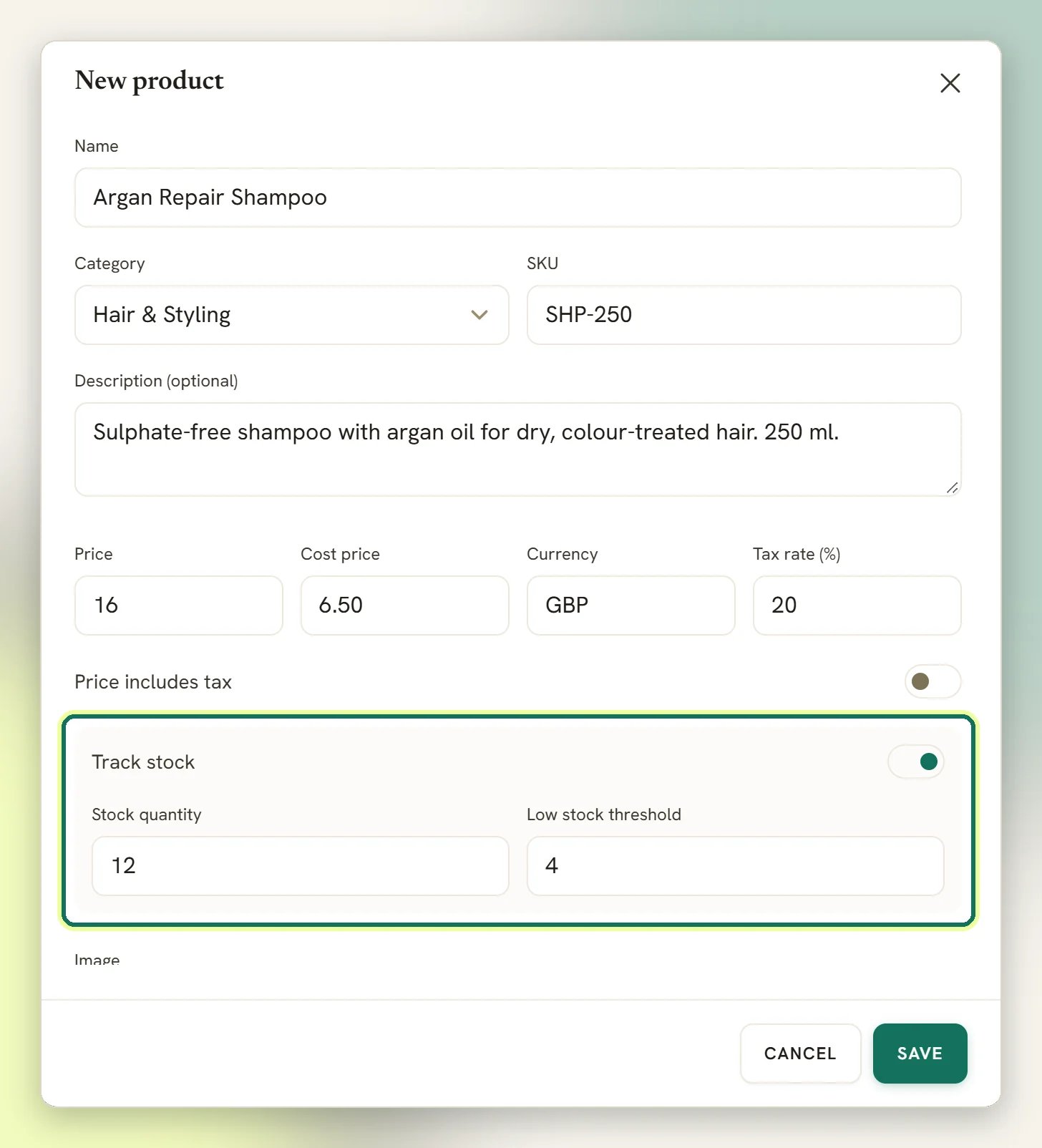
- Track stock is on
- Low stock threshold has a number in it
- Stock quantity is at or below that threshold
- Confirming an order decrements stock for the products on it. See Orders. Confirming the same order again does not decrement a second time.
- Every change is recorded: sales, corrections and manual edits all go through one ledger, so the current count always has a history behind it.
Get alerted when stock runs low
Low stock and back-in-stock are automation triggers, so what happens next is yours to build in the flow builder. The part that catches people: these fire on a crossing, not on a state. DMLY compares the count before the change with the count after it.- Stock low fires when the count was above the threshold and the change takes it to or below it. Going 4 → 3 with a threshold of 3 fires. Going 3 → 2 does not; it was already low, so nothing was crossed.
- Back in stock fires when the count was at zero (or below) and the change takes it above zero. Restocking from 5 to 50 fires nothing, because it was never out.
A stock event is about a product, not a person; there is no customer to reply to. So the
trigger asks you to name a tag, and the flow runs for the contacts carrying it, capped at 500
contacts per run. Use it for a “notify me” waitlist tag, or a tag on your own team. Without a
tag on the trigger, there is nobody to message.
Send a product from a flow
The flow builder’s Offerings group has a step that sends a product from your catalogue to the contact in the conversation. It has two fields: the product, and an optional message. The message can use{{product.name}}, {{product.price}} and {{product.stock}}. Leave it blank
and the step sends a plain text line with the product’s name, price and currency. There is no
button. If the product can’t be found (say it was deleted), the step takes its failure branch.
Alongside it is a check stock step, which is a branch rather than a send: it looks at a
product and sends the run down one of two paths, in stock or out of stock. Two things about it
are worth knowing before you build on it:
- A product with stock tracking off is always treated as in stock. There is no count to check, so the step will not claim otherwise.
- A product it cannot find goes down the out-of-stock path, on purpose. It never claims availability it cannot confirm, so a deleted product fails safe, in the direction that does not promise a client something you cannot sell.
{{product.stock}}, so you can put the
real number in the reply. It also defaults to the product from the trigger, which means it
chains straight off a stock event without you picking anything.
Import and export
Products are the one part of the catalogue you can move in bulk.1
Get the shape right
Select Import, then Download sample CSV. Use it as your template: matching its
columns is the whole job.
2
Upload
In Import products, upload your file. Every row with a name becomes a new product.
3
Get your data back out
Export downloads your current products as a CSV, a useful backup before a bulk price
change, so you have the old prices on record.
AI Catalogue Builder
To add a batch of products with a review step, select AI Catalogue Builder in Offerings → Products. It needs permission to import products.1
Add your catalogue
Upload a CSV with the usual product columns, or paste a product list or menu. Each batch
takes up to 30 products and 40 KB. Select Create review draft. Nothing is added to
Products yet.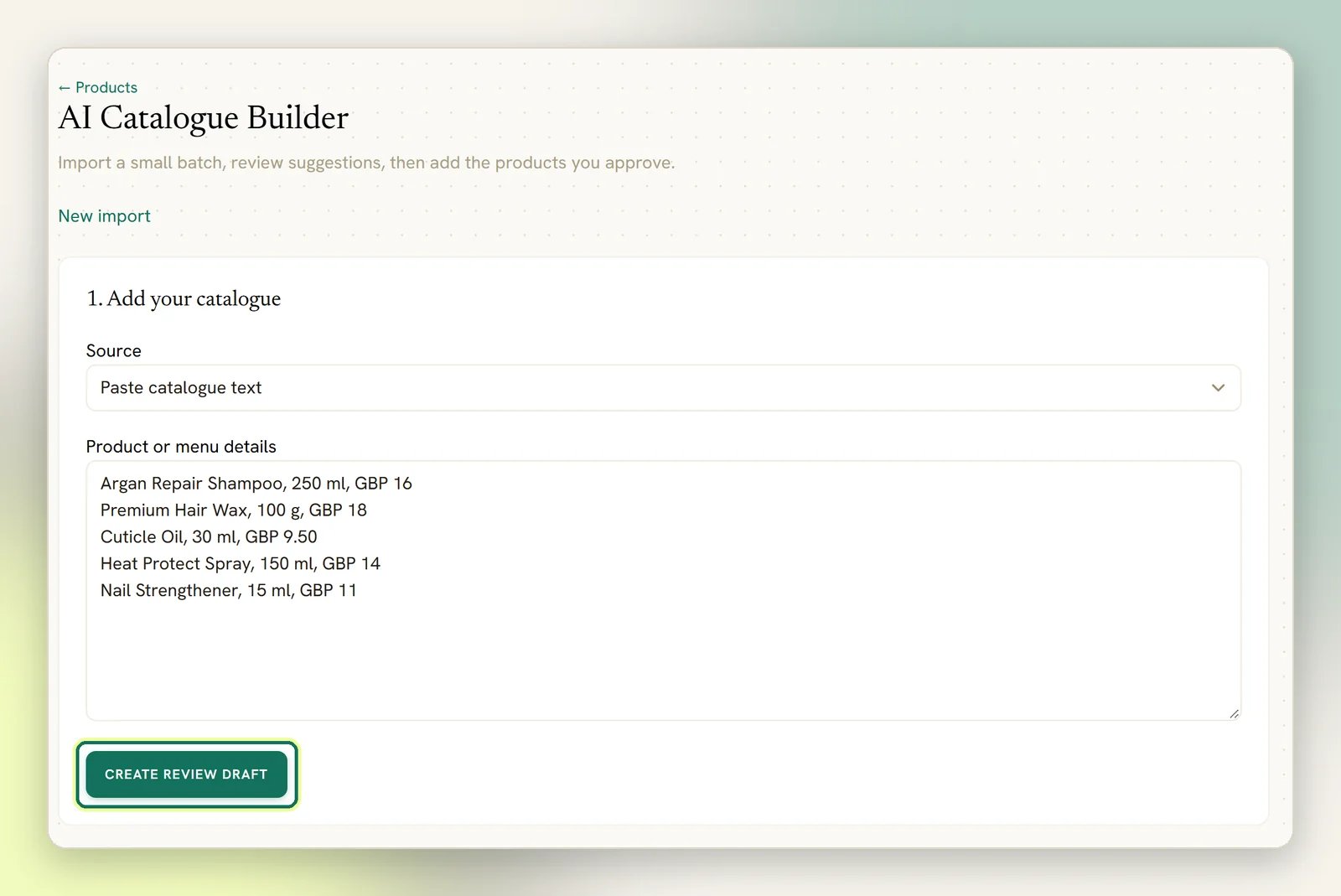
2
Get suggestions (optional)
Choose one of your own connected AI providers and select Suggest improvements, or
Extract products for pasted text. The AI suggests names, descriptions and categories.
Pasted text needs a provider; a CSV can be reviewed without one. DMLY’s shared AI isn’t used
here.
3
Review each product
Check each one against your source and enter the price, currency, tax and stock yourself.
The AI never fills those in from pasted text. Deal with any Possible duplicates, and tick
I checked this product against my source and approve its values.
4
Import
Select Import approved products. Only approved rows are added, and nothing already in
Products is overwritten. Leave a product inactive while its details are incomplete.
What does not work yet
The product editor shows two Meta catalogue controls (Sync to Facebook and Sync to Instagram) under a heading that labels them honestly: Meta catalogue · Coming soon. They are placeholders. Both switches are greyed out and disabled, so you cannot turn them on, and nothing syncs your products to Facebook or Instagram.Products on orders and invoices
When a product goes onto an order or an invoice, DMLY copies its name, price and tax onto that line. The line is a snapshot, not a live link. This is deliberate, and it protects you: raise your prices next month and last month’s issued invoices still say what the client actually agreed to pay. The flip side is that editing a product never corrects a document already issued; fix the document itself, in Invoices or Orders.Where to next
Offerings overview
How services, products and plans fit together.
Categories
Group a long product list so it stays workable.
Orders
Sell a product, and decrement its stock.
Triggers
Stock low, back in stock, and the rest of the commercial events.