

Internal notes
Notes live in the details panel on the right of the open conversation, under Internal notes. They are visible only to people who log in to your Workspace. Before you add the first note the panel says so: Notes are only visible to your team. Nothing you write there is ever sent to the contact on any Channel.1
Open the conversation
Select the conversation in the Inbox list. The details panel is on the right. On a narrow screen it is hidden, so use a wider window when you need it. In the mobile app, use Add note in the conversation menu instead.
2
Write the note
Type in Add an internal note…. To pull a teammate in, type 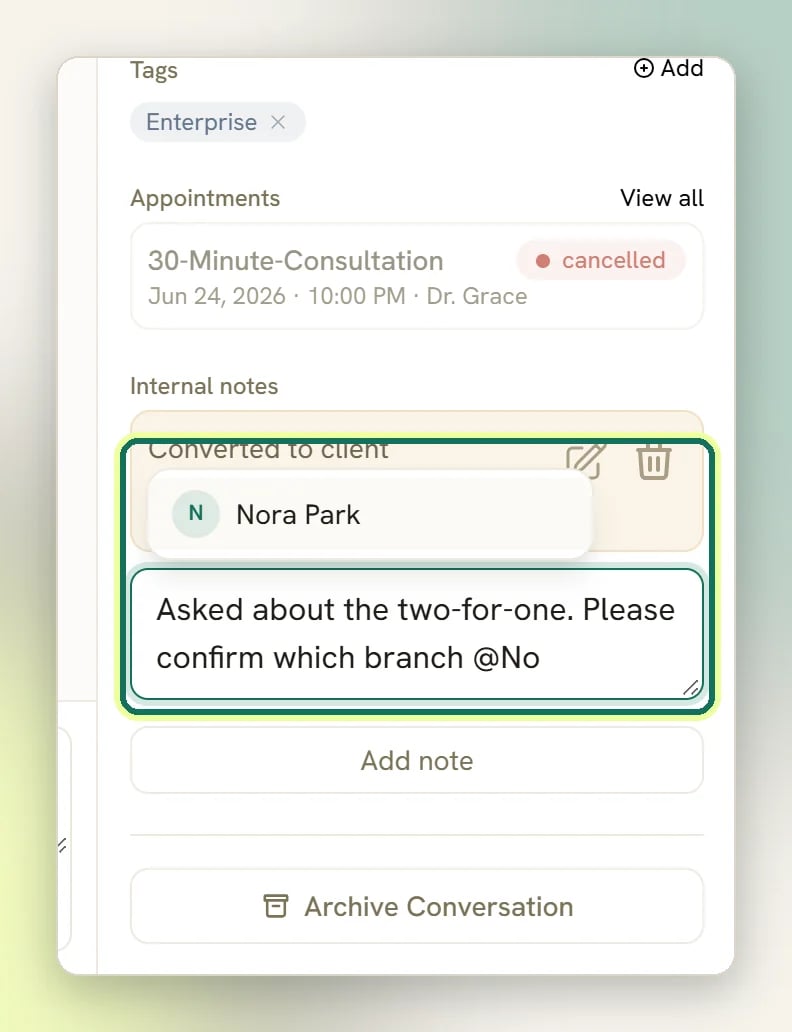
@ and pick their name from the list that appears.3
Save it
Select Add note. The note appears in the panel with your name and how long ago you wrote it.
Editing a note does not re-notify anyone. If you add a mention while editing, that teammate gets nothing, so write a new note instead.
Mentioning a teammate
The@ list matches people in your Workspace. Mentioned teammates get a You were mentioned notification in the bell menu that links straight back to the conversation, so they can pick it up without you chasing them in another app. You are never notified about your own mentions, and mentioning someone who is not in the Workspace does nothing.
Matching is on the whole name, so @Ann notifies Ann and does not also notify Anna.
See Notifications for where those alerts show up and how to control them.
Seeing that a teammate is already replying
When another teammate is typing in the same conversation, you see three bouncing dots and<name> is typing… just above the reply box, or <count> teammates are typing… when more than one of you is in there. This is the cheapest way to avoid two people sending the same answer thirty seconds apart.
A few things worth knowing:
- The teammate hint works on every Channel, not just the LiveChat widget.
- On LiveChat, if the visitor is typing at the same time, Customer is typing… wins the slot, so you will not see both at once. Other Channels give DMLY no customer-typing signal, so there you only ever see the teammate hint.
- The indicator disappears a few seconds after the last keystroke, and expires on its own if a teammate closes the tab mid-sentence. A stuck indicator is not a thing you need to clear.
- It is a live hint only. If real-time messaging is not reaching your browser, you simply do not see it; there is no fallback and no error. Messages themselves still arrive, because the Inbox refetches the open thread regardless.
<name> is typing… in the widget while you type.
Taking over from the bot
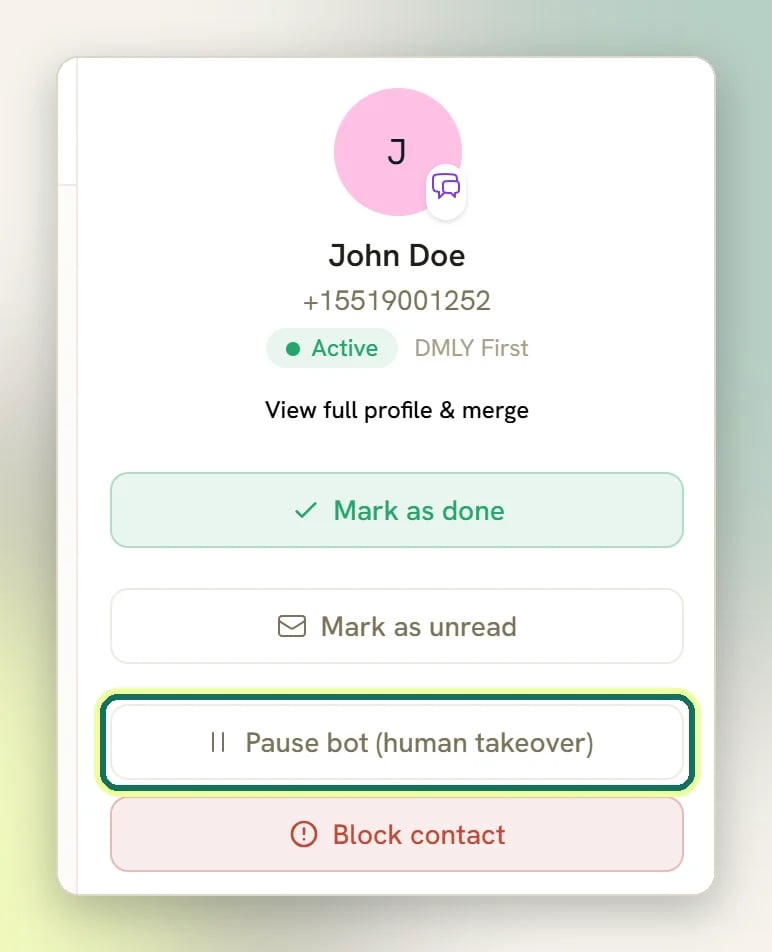
Every automated reply (bots, Flows, Sequences, scheduled and lifecycle triggers, AI) checks one switch on the contact before it fires. When it is on, the contact gets no bot replies, Flow steps, Sequence messages or AI replies, while your team can still reply normally. That switch is the handover.Pausing the bot does not silence everything. Broadcasts still reach a paused contact, and so do transactional notifications: appointment confirmations, reschedule and cancellation notices, and review requests. Appointment reminders are the exception: those do check the pause before sending.
What pauses the bot
A reply only takes over when it actually goes out: one DMLY refuses to send (the WhatsApp window has closed, an empty message, a template with a value left blank) leaves the bot running.
In the flow builder, the handover step is Handover to Human, and its Pause bot replies
toggle is what decides whether it pauses. The step that hands back is Resume bot replies.
A cart lands in the “can’t be processed automatically” row when the cart is empty, has no currency or a zero total, uses a currency you do not sell in, contains an item that is out of stock or a product DMLY does not recognise, or when you have no cart automation set up. It writes its own line into the thread:
🙋 WhatsApp cart needs a human (<reason>) — bot paused.
When a Flow or an AI agent hands over, it also drops a line in, so whoever picks the conversation up can see why it landed with them. The two are worded differently:
- A Flow writes
🙋 Handed over to a human — <name> (bot paused), naming the assignee. The— <name>part appears only when the step sets an assignee, and(bot paused)only when the step pauses the bot. - An AI agent writes
🙋 AI handed over to a human — <reason> (bot paused), giving its reason rather than a name.
▶️ Bot replies resumed, and only when the bot was actually paused.
The parked-flow banner
Taking over does more than mute the bot. If the contact was part-way through an automation, that run is parked: frozen exactly where it stood, keeping its current step, the answers already given, and whatever was left of a wait timer. Nothing is cancelled and nothing restarts from the beginning. You see it as a banner in the details panel, above Pause bot (human takeover), headed“<flow name>” is paused (just “An automation” is paused if the flow has no name yet), with the line You replied, so this automation is holding its place — its step, answers and remaining wait are kept. (That wording is fixed, so it still says “You replied” when you paused the bot by hand instead.) Three buttons decide its fate:
The banner is only ever about the frozen run. A Flow’s own Resume bot replies step lifts the pause but does not un-park anything, so a run parked by a takeover keeps its banner until somebody uses one of these three buttons.
Closing a conversation with a paused automation
Select Mark as done while that banner is showing and DMLY asks before it closes anything: What should happen to the paused automation?, followed by“<flow name>” is still paused at the step you took over. Choose what happens to it now. Pick one:
Keep it paused — decide later is pre-selected, unless your workspace’s resume policy is When the conversation is closed, in which case Resume it from the same step is. A policy of Never — end it by hand removes the resume option from the list entirely. See Conversation settings.
Then select Mark as done in the prompt to close, or Cancel to back out: cancelling leaves the conversation open and the automation exactly as it was.
The prompt appears only when a parked automation exists, and only in the web Inbox. With nothing parked, Mark as done closes straight away as it always has. Closing from the mobile app, from a flow’s Close conversation step, or over MCP cannot ask, so those follow the workspace resume policy instead.
What un-pauses the bot
This is where people get caught out. These turn the bot back on:- Selecting Resume bot in the details panel.
- Selecting the Bot paused button on the contact’s profile page. It is one toggle: select it and it reads Bot active again.
- Selecting Resume bot in the mobile app’s conversation menu. It works exactly like the details-panel button.
- The parked-flow banner’s Resume or Skip this step.
- The close prompt’s Resume it from the same step or Skip that step and continue.
- A Flow reaching a resume-bot step.
- Your workspace’s resume policy, if an admin opted into one: When the conversation is closed hands back as the conversation closes, and After a quiet period hands back once the set number of hours has passed since the takeover. Neither is the default. See Conversation settings.
- The contact writing back later never resumes the bot. Their message may reopen the conversation, but the pause stays, so a contact you helped last month can message again and get silence from your automations.
- Marking the conversation done leaves it paused on the default resume policy, and on Never — end it by hand. It only hands back if your workspace chose When the conversation is closed, or if you pick a resume option in the prompt yourself.
- Time passing leaves it paused unless your workspace chose After a quiet period. The pause has no expiry of its own.
- Ending the automation leaves it paused, from either the banner or the close prompt.
A paused contact blocks every Flow except one that contains a resume-bot step; otherwise that step could never run and the pause could never be lifted automatically. So a Flow built purely to resume the bot still works on a paused contact.
The bot has stopped replying to one contact
The bot has stopped replying to one contact
Open that conversation and look at the details panel. If it reads Resume bot, the bot is paused for this contact; select it and automations start firing again. The contact’s profile page shows the same state on a button that reads Bot paused or Bot active. Selecting Bot paused there does the same job.The usual causes, in order of how often they bite:
- Somebody replied, which is a takeover, and nobody resumed afterwards.
- The contact was blocked at some point and then unblocked; unblocking leaves the pause in place.
- A Flow or an AI agent handed the conversation to a human. Scroll the thread for the handover line.
- Someone chose End automation, or End it — I handled this myself when closing. Both end the flow and leave the pause behind.
Related
Assigning chats
Who owns a conversation, and why replying changes it.
Conversation status
Open, done, archive, and what reopens a conversation.
Conversation settings
Set whether replying takes over, and when the bot gets the conversation back.
Notifications
Where mentions and assignments show up.
Quick replies
Saved replies your whole team can insert.