

What an admin sets here decides whether an event fires at all, for everyone and every contact. In the mobile app (Settings > Notifications), each member can also turn push notifications for single events on or off under Notify me about, switch push off for their devices under How to reach me, and turn on a Daily digest. Those choices are per user and per workspace, and only affect push and the digest. The dashboard has no per-user notification settings. See Profile and Security.
Who can change them
Notification settings live in Workspace Settings → Settings → Notification settings. The link to Notification settings sits in the admin-only Workspace Settings area, so in normal use only an admin reaches it. See Roles and permissions.The two tabs
Client & staff messages
Messages that leave DMLY (WhatsApp, SMS or email) and land with a contact or a member of your team.
In-app alerts
Alerts that stay inside DMLY. Nothing here is ever sent to a client. See Inbox notifications.
Which number they send from
The Client & staff messages tab opens with a Default WhatsApp number picker, above the event cards. It sets the number every WhatsApp notification sends from, and it is the number a first-time inbox message goes out on unless you pick a different one with the Send from picker in the Inbox. Set it before you look at any templates. The WhatsApp template dropdowns, and the Approved, Pending and Rejected badges beside them, only list templates approved on that number’s WhatsApp Business Account, so changing the number changes which templates you can pick. The picker saves with the same Save button as the rest of the page. The list only offers numbers that can actually send, and the picker is not there at all if you have none connected. A contact who already messages you on one of your numbers keeps that number; the default is what DMLY uses when there is no WhatsApp conversation yet. It is one setting for the whole workspace, not a per-event choice, and it does not appear on the In-app alerts tab.Customer-facing or team-facing
On the Client & staff messages tab, each card is one event and the cards are grouped under four headings. Each heading tells you who is on the receiving end:- Client notifications go out to the contact.
- Staff notifications go to the staff member concerned.
- Other notifications go to your team: the admin, receptionist or scheduler-type members rather than the staff member on the booking.
- Finance notifications (invoice sent, payment receipt, gift card delivery, payment failed and renewal reminder) all go out to the contact.
Turn a notification on
1
Open the settings
Go to Workspace Settings → Settings → Notification settings.
2
Pick the tab
Client & staff messages for anything that leaves DMLY. In-app alerts for the alerts your team sees in the app.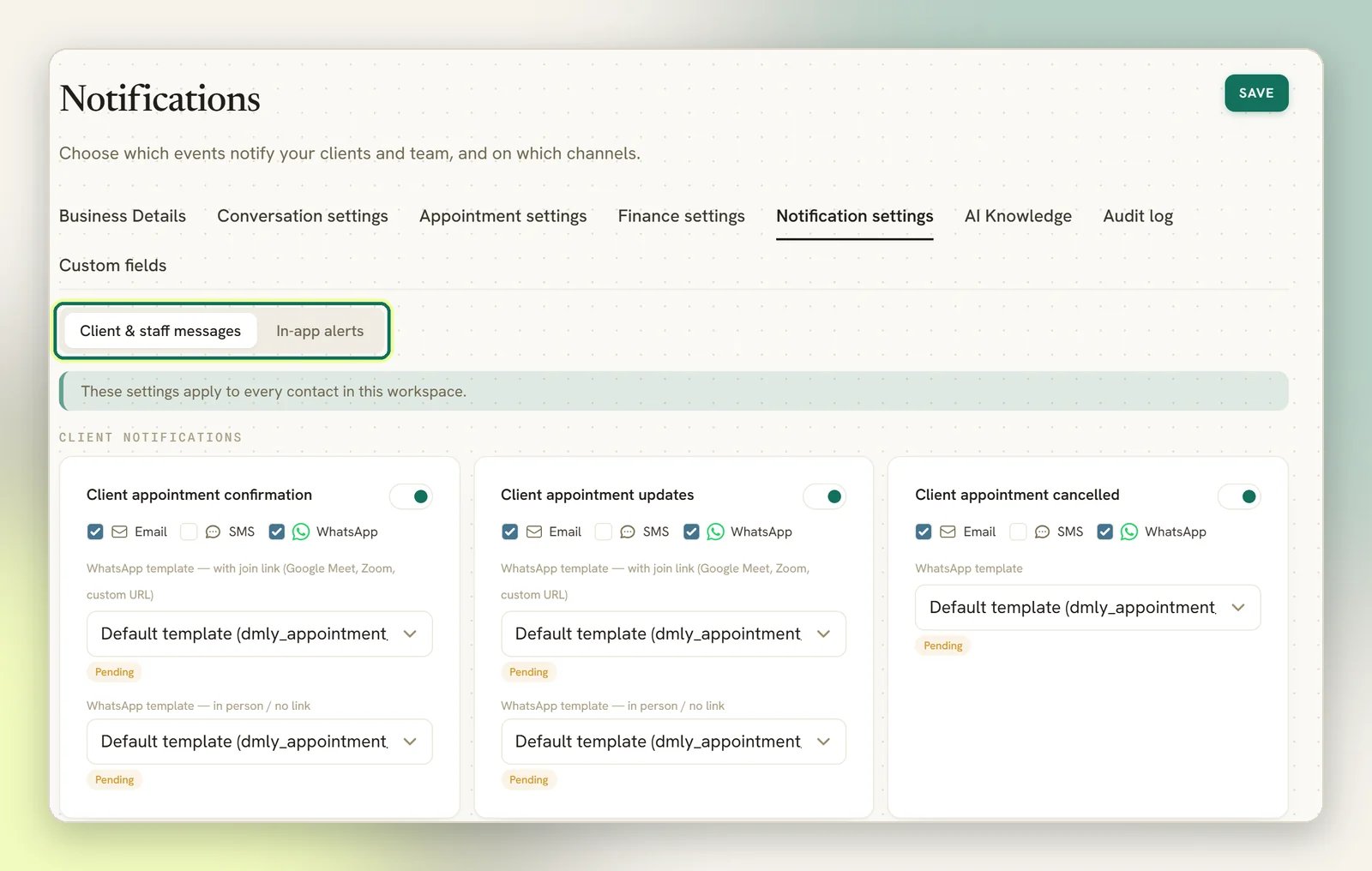
3
Switch the event on
Find the event’s card and turn on its toggle. The channel checkboxes stay hidden until you do.
4
Tick the channel you want
Tick Email, SMS or WhatsApp, whichever you want the event delivered over.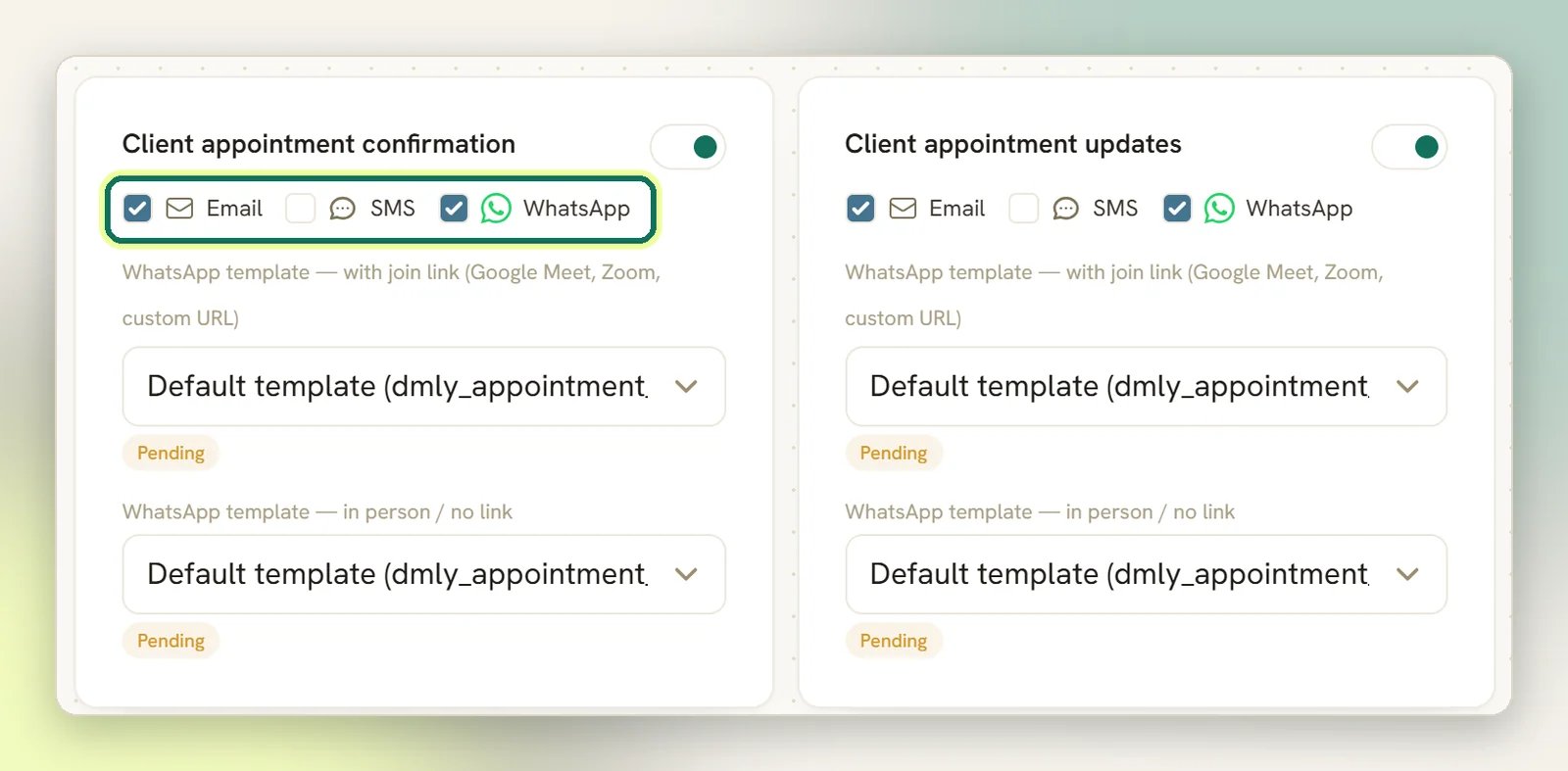
5
Set the sending number
At the top of the Client & staff messages tab, pick the Default WhatsApp number these messages send from. If you have only one connected number it is already selected. Do this before the next step: it decides which templates the dropdowns offer.
6
Check the WhatsApp template
A WhatsApp notification is carried by an approved WhatsApp template. Ticking WhatsApp reveals a WhatsApp template dropdown inside the card. It opens on the default option (labelled Default template followed by the template’s own
dmly_ name) with an Approved, Pending or Rejected badge beside it. The client appointment confirmation, update and reminder events show two pickers instead: WhatsApp template — with join link (Google Meet, Zoom, custom URL) and WhatsApp template — in person / no link. Each has its own default and badge, and DMLY picks one per booking, so set both. The alternatives in the dropdown are your approved templates. See Message templates.7
Save
Press Save in the page header. Nothing is stored until you do, and your changes are lost if you navigate away first.
If a notification doesn’t arrive
Nothing sent, or sent on the wrong channel
Nothing sent, or sent on the wrong channel
Work through it in this order:
- The event is switched on, and the channel is ticked, on the Client & staff messages tab, and you pressed Save.
- The channel itself is connected: a WhatsApp notification needs a connected WhatsApp number. See Connect WhatsApp.
- The WhatsApp template it uses is approved by Meta. Without one, DMLY sends a normal WhatsApp message only while the contact’s 24-hour window is open. Outside the window it falls back to the channel the contact arrived on (unless SMS is ticked for that event, when the SMS goes instead). If none of those apply, nothing goes out. See Message templates.
Next
Team members
Invite the people who receive staff notifications.
Roles and permissions
Who can reach Workspace Settings in the first place.