

- Saved replies do not support variables. The text is inserted and sent exactly as written, so nothing like
Hi <first name>is filled in. Write replies that read correctly for everyone, or add the personal part by hand after inserting. - There is no keyboard shortcut. You insert a saved reply by clicking it in the list. Typing
/or a shortcode in the reply box does nothing.
Create a saved reply
1
Open a conversation
Go to Unified Inbox and open any conversation. Saved replies are managed from the reply box, so you need a thread open.
2
Open the saved replies list
In the reply box, open Saved replies. If you have none yet you’ll see No saved replies yet.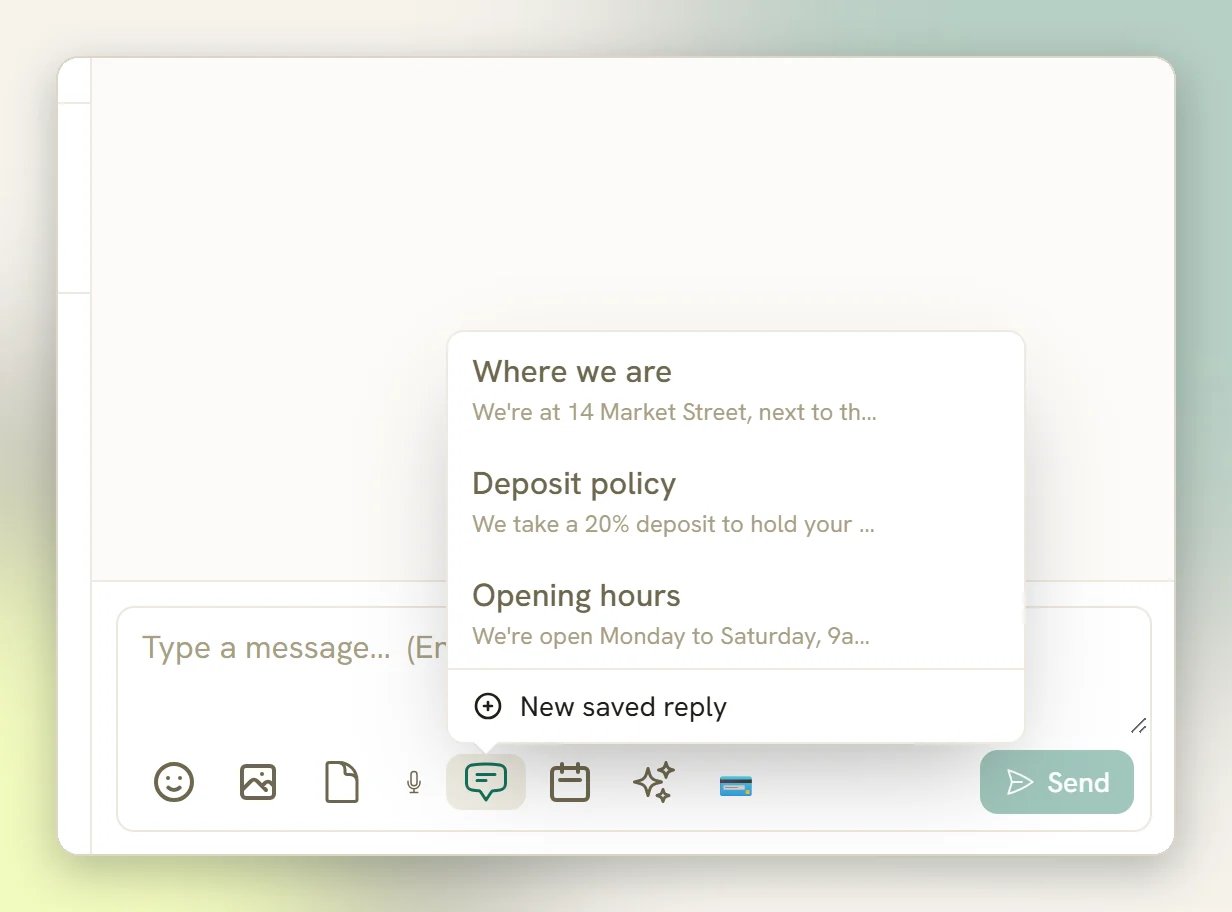
3
Add a new one
Select New saved reply. Give it a Title (the name you’ll recognise it by in the list, like 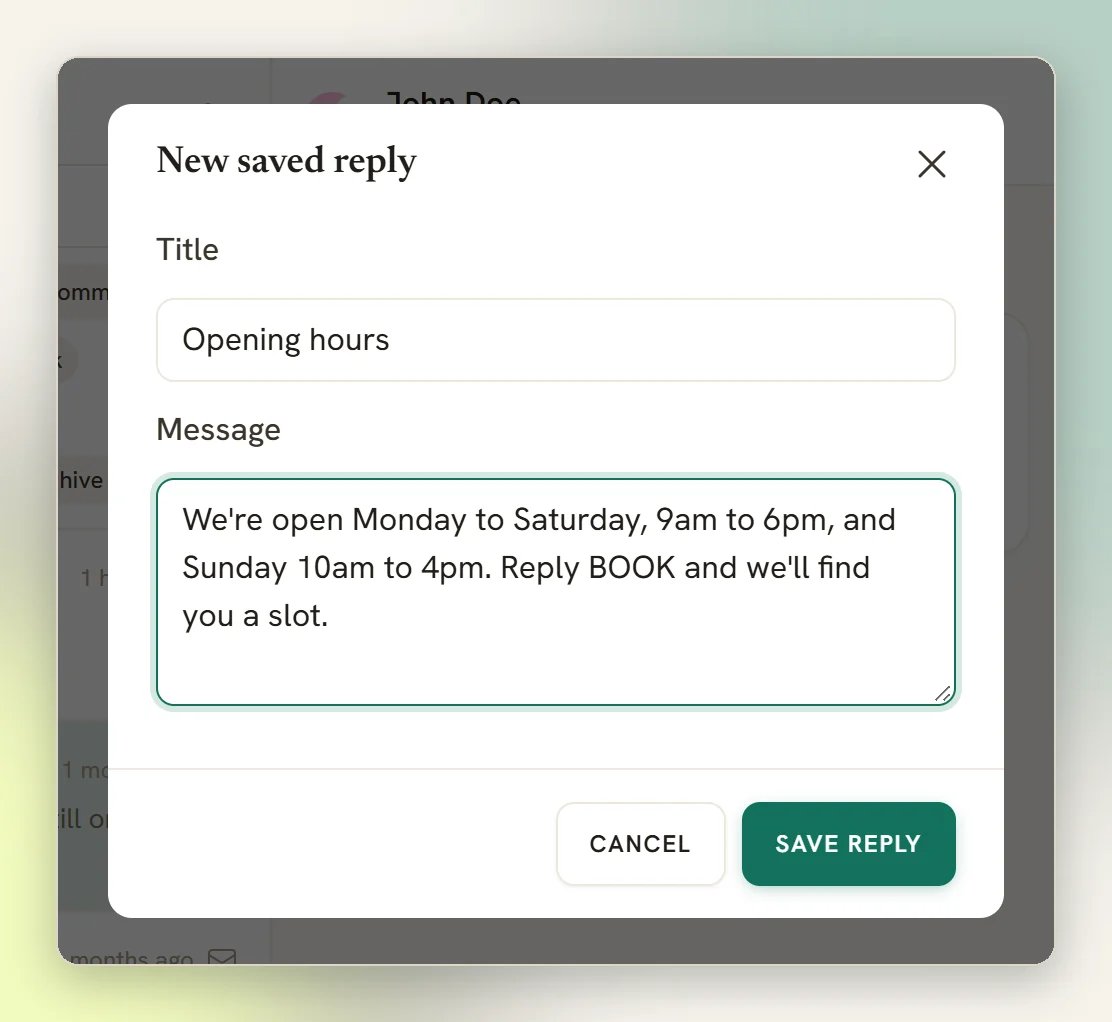
Shipping info) and put the text you want to send in Message.4
Save it
Select Save reply. It’s available in every conversation straight away.
Insert one into a reply
Open Saved replies in the reply box and click the one you want. On the web, the text is added to the end of whatever is already in the reply box, on a new line; it doesn’t replace your draft. So you can type a personal opener, insert the standard answer underneath, then edit anything you like before sending. In the mobile app, tapping a saved reply replaces whatever is in the reply box, so pick the reply first and add your opener after. The mobile app only lists saved replies: create, edit and delete them on the web. Nothing sends automatically. The reply goes out only when you select Send, so you can always adjust the text first, which is how you cover the missing variables: insert the reply, then type the contact’s name or their booking time in yourself.Edit or delete a reply
Open Saved replies and use the edit or delete icons next to an entry. Editing opens Edit saved reply with the same Title and Message fields.Saved replies are shared across the whole Workspace, not private to you. Every teammate sees every reply in the list, and any teammate can edit or delete any of them, including ones you created. Treat the library as team property.
When you can’t use a saved reply
A saved reply is an ordinary free-form message, so the channel’s messaging window still applies.WhatsApp: the 24-hour window is closed
WhatsApp: the 24-hour window is closed
WhatsApp only allows free-form messages for 24 hours after the contact’s last message. Once that window closes the reply box locks: the Saved replies button greys out and you can’t insert one at all. To re-engage, send an approved WhatsApp template instead: that picker sits outside the locked area and stays clickable. See WhatsApp limits and windows.
Messenger or Instagram: the 7-day window is closed
Messenger or Instagram: the 7-day window is closed
Messenger and Instagram allow agent replies for 7 days after the contact’s last message. Once that window closes the reply box locks here too, so a saved reply is no help. You can message again only once the contact sends something new.
The contact is blocked
The contact is blocked
Blocked contacts have the reply box hidden entirely; no saved reply can reach them. Unblock the contact from the details panel to message again.
Related
Inbox overview
How conversations, folders and the reply box fit together.
WhatsApp limits
Messaging windows and when you need an approved template.
Notes and collaboration
Internal notes and @mentions your contacts never see.
Automation
When the same answer should go out without an agent at all.