

Nothing closes a conversation for going quiet. There is no auto-close after a silent period, no
matter how long ago the last message was. What can close one without anybody clicking is an
automation you built yourself: see What can mark one done.
What each status means
Open
Needs a human, or is simply not finished. Every new conversation starts here, and any inbound
message puts it back here.
Done
Your team has dealt with it. It leaves the Open folder and moves to Done. The contact
is not blocked, notified, or changed in any way.
What can mark one done
Four things, and two of them involve no person at all:
All four run the same action, so everything under
What marking done fires happens either way.
Mark a conversation as done
1
Open the conversation
Select it from the list. The details panel is on the right, on a wide screen of roughly 1280px
and up. Below that you get the list and thread panes only, and Mark as done is unavailable.
2
Select Mark as done
The button sits in the details panel. DMLY drops you back to the list with your folder and
filters intact. That is deliberate, so you can work straight through a queue.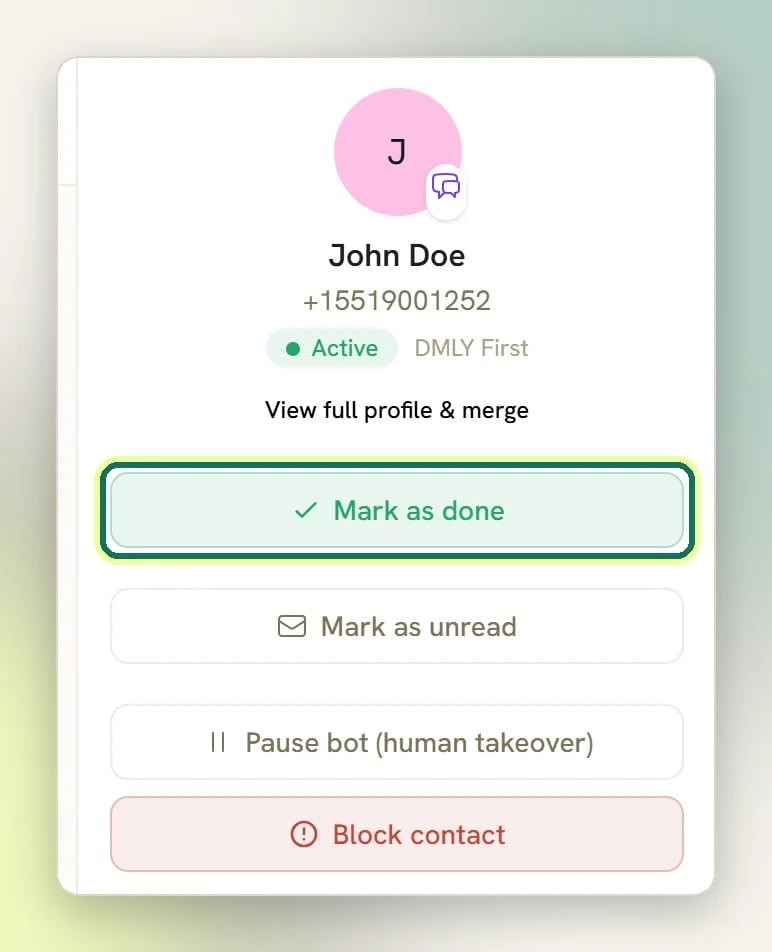
3
Answer the prompt, if you get one
If an automation is frozen mid-step because a human took the conversation over, DMLY asks
What should happen to the paused automation? before it closes anything: resume it, skip
the step it was waiting on, keep it paused, or end it. Cancel backs out and leaves the
conversation open. With nothing paused there is no prompt. See
Work a conversation as a team.
4
Reopen if you need to
Open the conversation again and select Reopen conversation. It flips back to open in
place, without moving you out of the thread.
What marking done fires
Marking a conversation done is not just a label; it is an event other parts of DMLY listen for:- The
conversation.closedwebhook is sent. - The Conversation closed automation trigger fires, so any flow built on that trigger starts for this contact: a follow-up ask, a satisfaction question, a tag.
The webhook and the trigger are named “closed” while the button says Mark as done. They are
the same thing.
message.received and any message-based automation, as it would on an open conversation.
A contact writing back reopens it
If a contact replies to a conversation you marked done, DMLY sets it back to Open and, if you had archived that thread, un-archives it. It reappears in your Open folder with the new message. This is why done is safe to use liberally. You are never hiding a customer who comes back; they surface again on their own. That is the default, and an admin can narrow it in Conversation settings: reopen only within a set number of hours of the conversation being closed, or leave it closed for good. The message is never lost either way. It is recorded in the thread, it raises the unread count, it still firesmessage.received
and any automation built on it, and it still un-archives an archived thread. Only the flip back
to Open is withheld, so a workspace that restricts reopening needs somebody watching All
or Unread only rather than just the Open folder.
Archive is a separate thing from done
Archive Conversation in the details panel is not a status. A conversation can be open or done and archived; archiving lives in its own Archive folder. Use Mark as done for day-to-day queue clearing, and Archive Conversation only for threads you genuinely want out of the way for good. Unarchive Conversation brings it back at any point in those 30 days. Delete permanently removes the thread and its messages immediately and cannot be undone.One contact can be two conversations
A Contact is one CRM record, but the Inbox lists DMs and Comments as separate rows, and shows one kind at a time. Someone who both messages you and comments on a post has a row on each tab: one under DMs, one under Comments, never two rows in the same list. Archive and delete apply to the row you are looking at; archiving the DM leaves the comment thread untouched. Open and done work differently: they are set on the contact, so marking the DM done moves their comment row to Done as well.Working a queue down
1
Start in the Open folder
The folders across the top are All, Open, Done, and Archive. Open is your
working queue.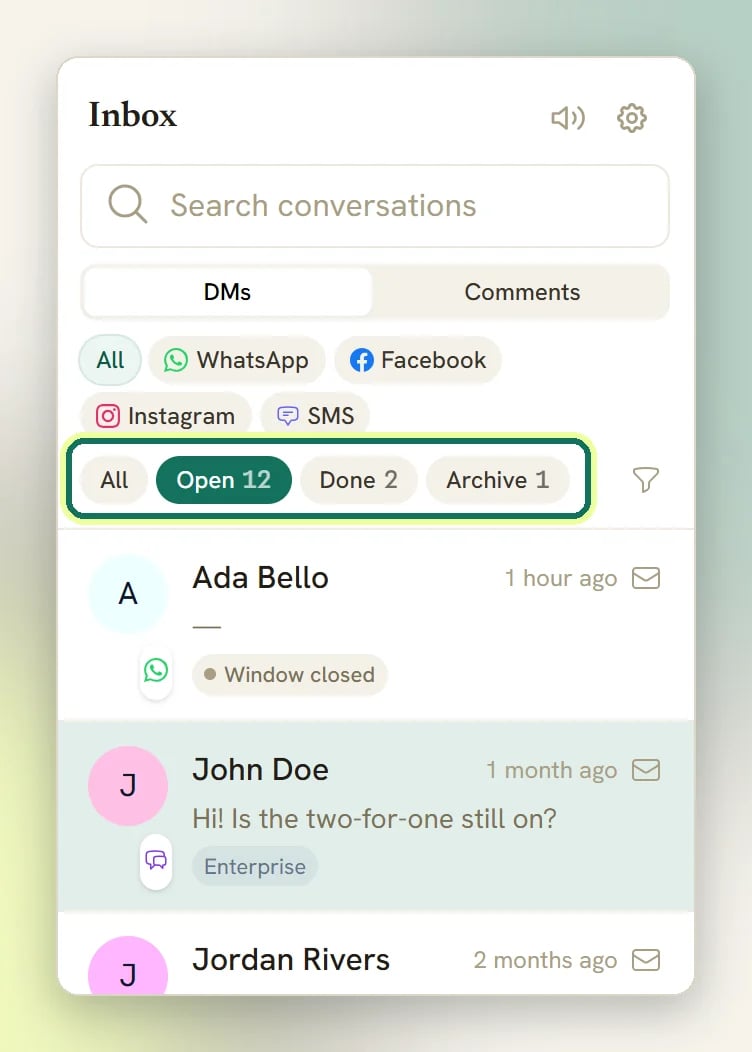
2
Narrow to what's yours
Open the filter toggle (the funnel icon) for the assignee filter (Anyone / Unassigned /
a teammate), Unread only, and the All channels picker. The always-visible platform row
(All, WhatsApp, Facebook, Instagram, SMS) narrows by platform; the channel
picker lists your connected channels, which is how you reach the platforms that row doesn’t show.
Above that row, the DMs / Comments toggle picks which kind of thread you’re working. It
starts on DMs and has no All, so switch it over when you want the public replies.
3
Reply, then mark as done
By default replying assigns the conversation to you automatically, so Unassigned empties as
your team works. When you’re finished, select Mark as done and you land back on the list,
ready for the next one.
The folder counts look slightly off
The folder counts look slightly off
The numbers on the folders are approximations, on purpose. They count contacts, while the list
shows threads (a contact can have both a DM and a comment thread), so a busy workspace can see a
small mismatch. The list itself is always correct.
The list loads 100 conversations at a time
The list loads 100 conversations at a time
The Inbox loads the 100 most recently active conversations in the current folder and filter.
Scroll to the end of the list and the next 100 load, with no overall limit, so older
conversations are always reachable. Narrowing the filters or using Search conversations
is usually quicker.
Done conversations keep getting reopened
Done conversations keep getting reopened
That’s an inbound message doing it: a contact replied. If it keeps happening on a chat you’re
finished with, check whether a bot is answering into it; you can stop that with
Pause bot (human takeover) in the details panel. See
Assign chats to your team.If it is happening across the whole workspace and your team treats done as resolved, an admin
can restrict or switch off reopening in
Conversation settings.
Next
Assign chats to your team
Who owns a conversation, and how replying changes it.
Inbox notifications
What gets you and your team alerted.
Conversation settings
Control when a closed conversation reopens, and what a reply does to the bot.