

Only workspace Admins can open Workspace Settings. Members and Viewers cannot reach it at all. See Roles and permissions.
Open Business Details
1
Open Workspace Settings
Workspace Settings is a separate area from the main sidebar. It opens with its own nav (Settings, Team Members, Billing, Receipts, and Security) and a Back button to return to the app.
2
Go to Settings → Business Details
Business Details is the first tab on the Settings page.
3
Fill it in and save
Everything on the tab is one form. One save writes the lot.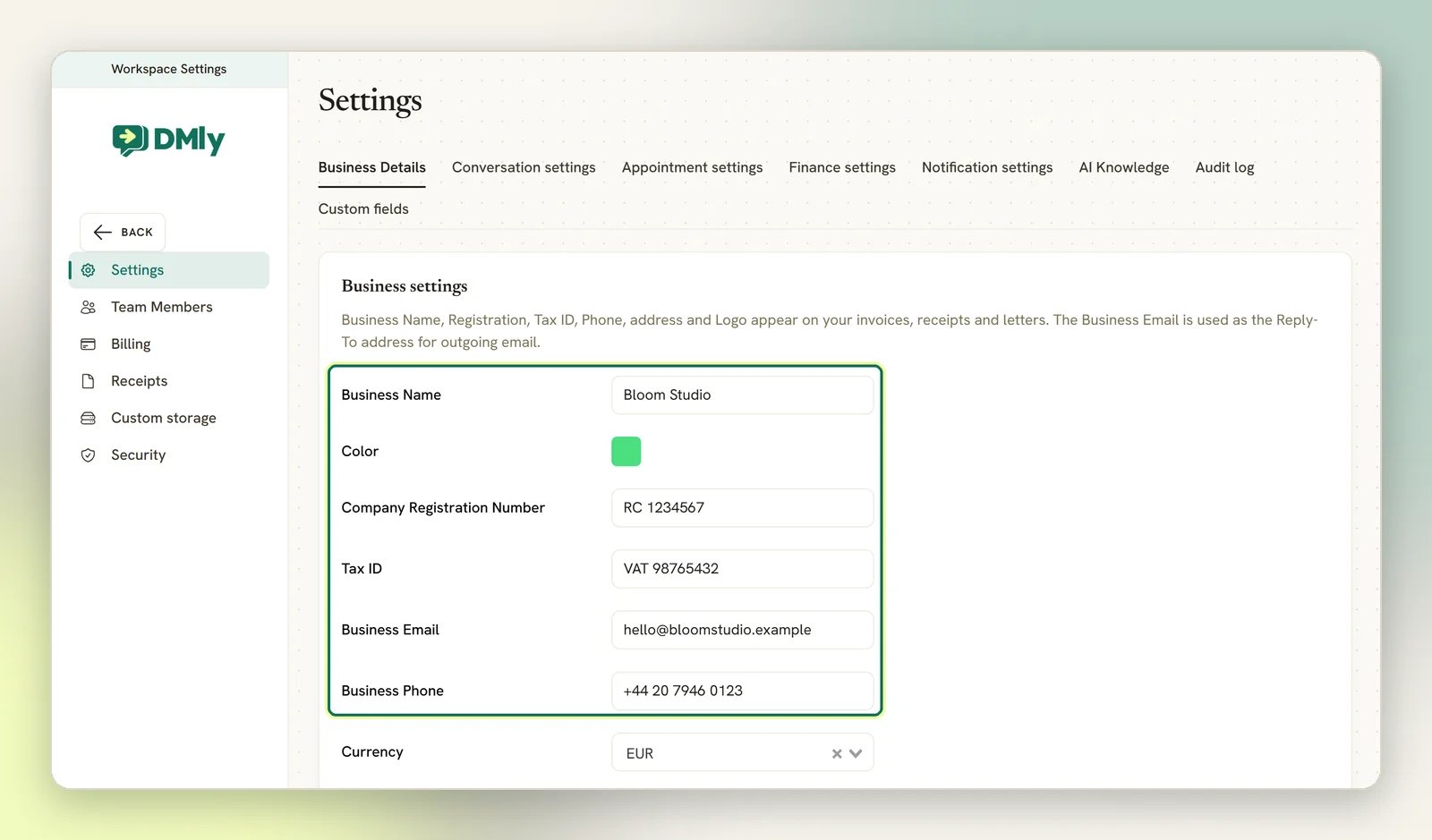
What lives here
Business Name
The name of your workspace and the name of your business. One field, one source of truth.
Logo
Upload your business logo.
Change workspace color
Your brand colour.
Currency
Pick from the Select currency list. DMLY offers 30 currencies.
Contact details
Business Email and Business Phone.
Registration details
Company Registration Number and Tax ID.
Timezone
Timezone isn’t on this tab. There are two of them, in two different places:- Your own display timezone is a personal preference, so each person on the team can work in their own. Set it under Edit Profile → My Preferences. See Your profile.
- The timezone your public booking page shows times in is a business setting, on the Appointment settings tab. Its Timezone section has a Timezone mode choice (Detect automatically or Fixed timezone), and picking Fixed timezone reveals a picker for which one. See Appointments.
The other Settings tabs
Business Details sits alongside seven more tabs on the same Settings page:Conversation settings
Human takeover, conversation ownership, reopening, and the AI reply policy.
Appointment settings
Booking rules and availability.
Finance settings
Invoicing, tax and payment behaviour.
Notification settings
Which events notify clients and staff, on which channel.
Custom fields
Extra fields on your contact records.
Audit log
Who did what in the workspace.