

Turn on two-factor authentication
Two-factor authentication lives on each person’s own profile, not in workspace settings. It is per user: you turn it on for your own login, and each team member turns it on for theirs.1
Open your profile
Open Edit Profile from your account menu.
2
Set up two-factor authentication
Find the Two Factor Authentication section and follow the setup there.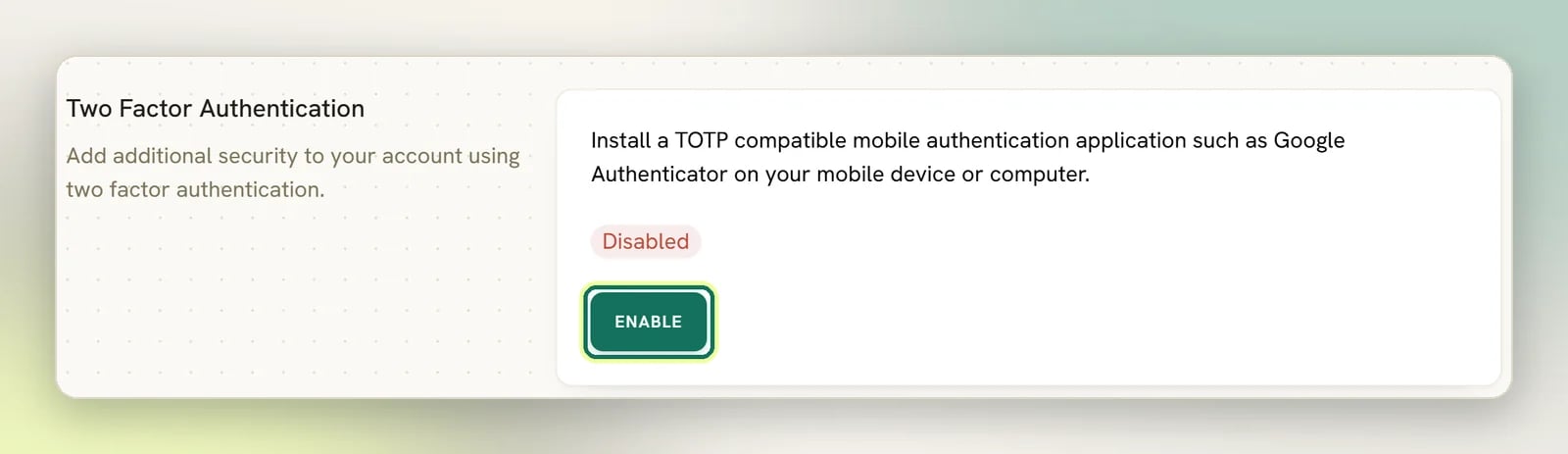
Two-factor authentication starts switched off; you have to enable it yourself. Until you
do, the section shows a red Disabled badge and an Enable button.
Limit yourself to one active session
Single active session is also on your own profile page, not workspace settings. It’s per user; you turn it on for your own login, and it has no effect on anyone else’s. It is one lock covering everywhere you sign in, browsers and the DMLY mobile app together, not one lock per surface: one signed-in session at a time for your whole account, and whatever signs in next takes the slot from whatever held it.1
Open your profile
Open Edit Profile from your account menu.
2
Turn on the setting
In the Single active session section, switch on Only allow one active session.
3
Confirm
Confirm Enable single active session?. This claims the slot for the browser you’re
on right now: every other browser session is signed out the next time it loads a page,
and every mobile app sign-in is revoked, including one on your own phone.
Single active session starts switched off, the same as two-factor authentication.
Nothing changes until you turn it on. Turning it back off is immediate and needs no
confirmation; it just stops the check. It doesn’t sign anyone out, and it doesn’t restore
a mobile app sign-in that enabling it revoked: that phone has to sign in again.
- A browser claims the slot (you sign in on a browser, or turn the setting on there), and the app’s sign-in is revoked. The next thing the app tries to do is refused and it drops you back to its sign-in screen, and that device stops receiving push notifications for the account until you sign in again.
- The app claims the slot (you sign in on a phone), and every browser session is signed out the next time it loads a page, landing on the login screen. Another phone already signed in loses its sign-in too.
What changing your password signs out
If you think someone else is in your account, changing your password is the right first move. It is not only a new password: it evicts the sessions the old one could still reach. It signs out:- Every other browser session, on any device, the next time that session loads a page. The check runs on each request, so a browser sitting on an open page is cut off as soon as it does anything.
- Every mobile app sign-in, including the one on your own phone, straight away. The app drops back to its sign-in screen and stops receiving push notifications for the account until you sign in again.
- Every “remember me” cookie, so a device that was remembering you can’t quietly sign itself back in.
- The browser you changed it from. That session deliberately stays signed in, so you don’t lock yourself out mid-task.
- Workspace API keys. A key is a workspace credential, not your login, and keeps working on your old password. If a key might be exposed, revoke it from Integrations. See API authentication.
- An AI client already connected over MCP. Its access rides on the authorization the connection was granted, not on your password, and DMLY has no page to cut one off from: disconnect it in the client that holds the connection, or revoke the API key it uses. See the MCP server.
Control who can do what
The strongest lever you have is roles. Everyone who logs in has a base role of Admin, Member, or Viewer, and you can build custom roles that grant an exact set of permissions. Two boundaries are worth knowing:- Workspace Settings is admin-only. Members and Viewers cannot reach Settings, Team Members, Billing, or Receipts at all: not by clicking, and not by typing the URL. The exception is the tabs on the Settings page that carry a permission of their own, Audit log among them: a custom role can grant a Member one of those without opening up the rest.
- Security is owner-only. Only the workspace owner sees the Security page.
Team members
Invite people, set their base role, and remove access when someone leaves.
Roles and permissions
Build a custom role with exactly the permissions you want to grant.
The Security page
Workspace Settings → Security contains one thing: deleting the workspace. It is visible only to the workspace owner.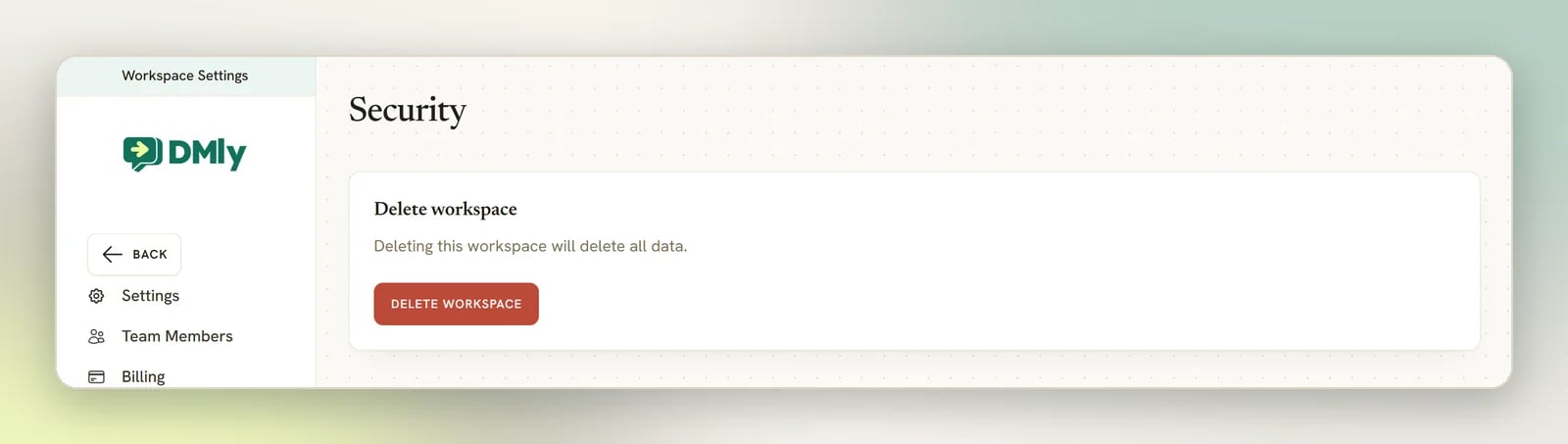
What DMLY does not have
Saying this plainly is more useful than implying protection that isn’t there:- No per-device session list. You cannot see which devices are signed in, and you cannot pick a single one to sign out. The two levers you have are blunter: each clears everything except the session doing the clearing. Those are changing your password (above) and Single active session, which repeats that eviction every time your account signs in anywhere while it’s on.
- A partial audit log, not a complete one. There is a record you can browse of who did what: Workspace Settings → Settings → Audit log. It covers deletions, bulk contact changes, service imports, an agency opening your workspace, every write an AI client makes over MCP, and some money and data actions: bank transfers confirmed or rejected, refund reversals, changes to the manual transfer bank account, contact restores and recovery purges, Live Chat widgets retired or erased, removals from a sequence, staff Google Calendar disconnects and review attribution corrections. It does not cover most everyday admin changes, so don’t read an empty log as proof nothing happened. See Audit log.
- No IP allowlist and no login-location restrictions.
- No ownership transfer. A workspace owner cannot hand the workspace to someone else from workspace settings. Only the platform operator can change a workspace’s owner, so ask your agency or DMLY support.
Where API keys live
Where API keys live
A workspace API key is a credential, so treat it like a password and never paste it into a
chat or a public page. Keys are minted from Integrations, not from the Security page.
See API authentication.