

The agency layer only exists once you subscribe to a reseller plan. Everything on this page
assumes you have. See Becoming an agency below.
Who this is for
You want the agency layer if you sell WhatsApp messaging, chatbots, or booking as a service and want your customers to see your name instead of DMLY. Typical fits: a marketing agency packaging DMLY for local businesses, a consultant managing several clients, or a software business bundling messaging into a wider offer. You do not need it to manage more than one business yourself. If you just want a second workspace, see Workspaces.Becoming an agency
There is no separate reseller application and no “become a reseller” page. You subscribe to a reseller plan the same way you would any upgrade, and your agency is created for you.1
Find the reseller plan
Reseller plans are ordinary paid plans that DMLY has flagged as reseller plans. Nothing on
your billing page marks them as such, so ask DMLY which plan to pick.
2
Subscribe
Your agency is created automatically, named after the workspace you upgraded from, and
that workspace moves under it. Nothing else to fill in.
3
Open the Reseller Dashboard
A Reseller Dashboard item appears in your user menu. That is the agency side of the
app, separate from your own workspace.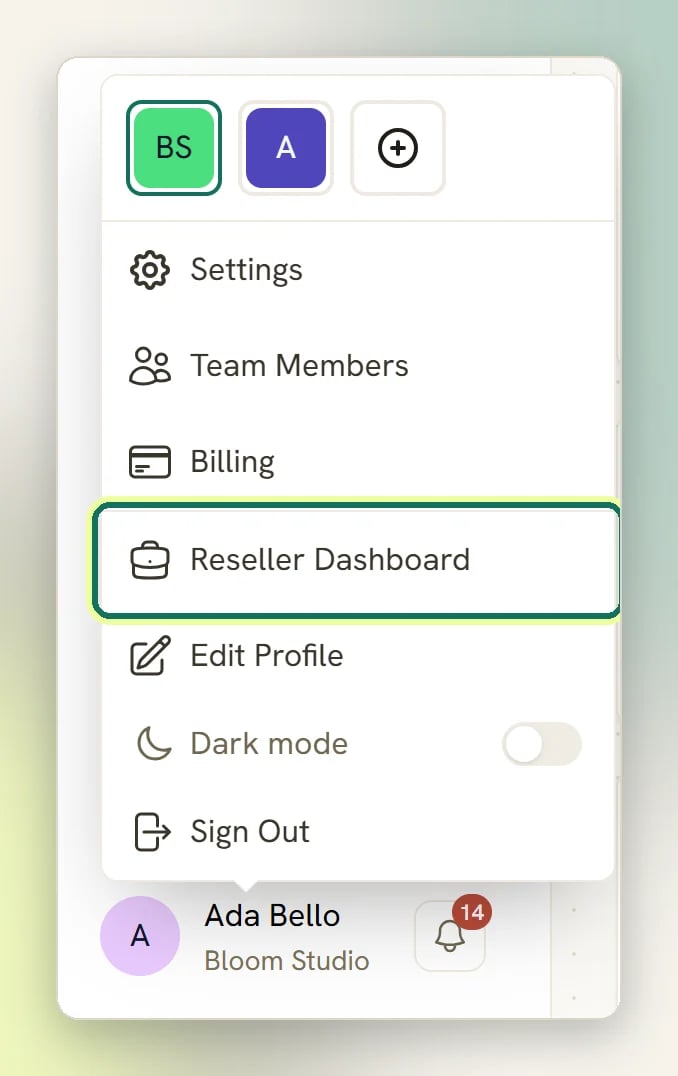
What you get
Your brand
App name, logo, support email, and a primary colour applied to every branded page.
Your domain
One custom domain per agency, with SSL issued automatically once DNS points at us.
Your plans and your Stripe
Build the plans you sell, set your own prices, and charge through your own Stripe account.
Your customers
Assign plans, grant add-ons, suspend or restore access, and open any workspace directly.
The Reseller Dashboard
Eight pages, reached from Reseller Dashboard in your user menu: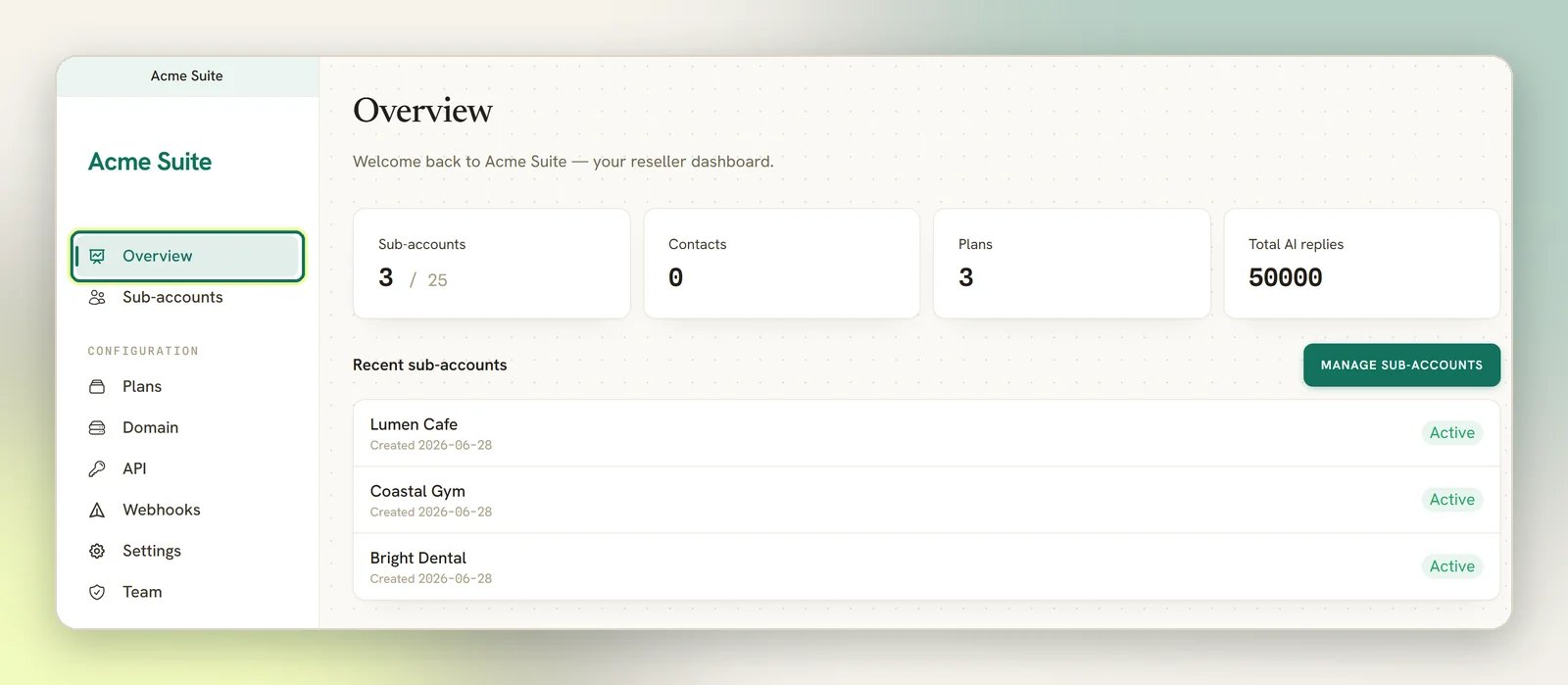
Plans, Domain, API, Webhooks, Settings and Team sit under a
Configuration heading. Staff see only the pages their access level allows.
How customers reach you
There is no create button in the agency dashboard. Sub-accounts appear three ways in normal use:- Someone signs up on your branded domain. Your public signup page asks for their name, email, password, and business name, and creates their workspace on your default plan. What that page says is yours to write, under Settings → Customer signup & workspaces. See Client workspaces.
- You provision one yourself over the Agency API, with
POST /workspaces. That single call creates the owner’s login and their workspace under your agency, on a plan you name or your first enabled plan, and returns the owner’s name and email. - An existing customer of yours creates an additional workspace. It stays inside your agency automatically. This only works if you set Settings → Customer signup & workspaces → Allow customers to create multiple workspaces to Yes; it is No by default, and a customer who already owns a workspace in your agency cannot create another.
How many sub-accounts you can hold depends on your reseller plan. When you hit the cap,
signups on your domain close and the Sub-accounts page warns you. Contact support to
raise it.
Who pays whom
Two separate money flows, and keeping them straight saves confusion later:- You pay DMLY for your reseller plan, on DMLY billing, like any other customer.
- Your customers pay you, through the Stripe account you connect in Settings → Stripe (charge your customers). That money goes to you. DMLY takes no cut of it and never sees the transaction.
Working inside a customer’s workspace
On Sub-accounts, Open puts you inside that workspace with full access, as its owner. Leave the same way you would leave any impersonation, from the user menu. Use it for setup and support rather than asking a customer to hand over their password.What DMLY still controls
You run your brand, but you are a customer of DMLY underneath it, and a few things stay ours:- “Powered by” appears on your public booking pages, on HTML invoices, and in notification emails. On a branded agency it shows your app name, linking to your Powered by link if you set one. There is no way to remove it entirely.
- Sub-account access follows your agency’s standing. DMLY can suspend an agency, or release one of your sub-accounts back to being a direct DMLY customer.
- Everything a workspace does (channels, inbox, automation, appointments, finance) is the same product your customers would get directly. The agency layer changes who brands it and who bills for it, not what it does.
Next steps
Set your brand
App name, logo, colour, support email, and your own SMTP.
Connect your domain
Point DNS, verify, and open your branded signup page.
Build your plans
Decide what you sell, at what price, with what limits.
Manage sub-accounts
Assign plans, grant add-ons, suspend, restore, open.