

You pay DMLY
Your own workspace carries a whitelabel reseller subscription, billed by DMLY on DMLY’s
Stripe account. This is what makes you an agency. See Plans.
Your clients pay you
Your client workspaces are billed by you, on your own Stripe account, at whatever
price you set. DMLY never sees that money and takes no cut of it.
Connect your Stripe account
Nothing can be billed to a client until your own Stripe account is connected. Go to Settings → Stripe (charge your customers), enter your Stripe keys, and select Save Stripe keys. The page has three fields (Secret key, Publishable key, and Webhook signing secret) and a badge reading Connected or Not connected. Your keys are stored encrypted. Your secret key and webhook signing secret are never shown back to you; your publishable key is. Below the fields, the panel shows Your webhook endpoint, a URL you can copy. In your Stripe Dashboard, create a webhook endpoint pointing at this URL, then paste its signing secret into Webhook signing secret and save.Charges, subscriptions, and receipts all run through your Stripe account, so refunds,
disputes, and payouts are handled in your Stripe dashboard, not in DMLY.
Build your plans
Go to Plans in the agency dashboard and select New plan. A plan carries: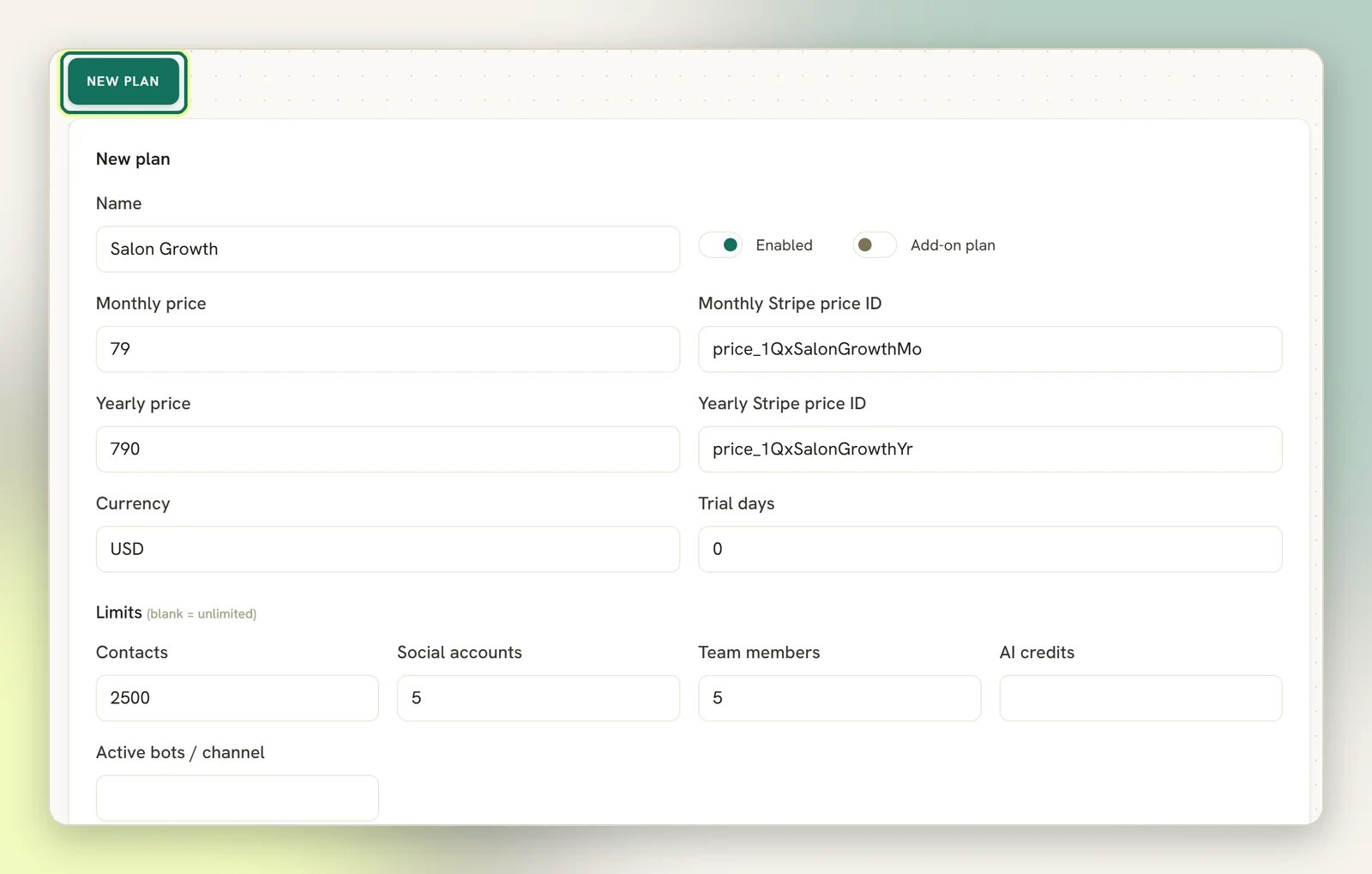
- Enabled: whether clients can subscribe to it.
- Monthly and Yearly prices.
- Currency, the label shown next to the prices on your plans list and your client’s billing
page. It defaults to
USD. The currency actually charged comes from the Stripe price you enter in Monthly Stripe price ID and Yearly Stripe price ID, so keep the two matched by hand. - Trial days: how long a client gets before the first charge. Leave it at
0for no trial. Anything higher is passed to Stripe Checkout as a trial period and shown on the client’s own billing page as an “N-day free trial”, so it is a real offer, not a label. - Limits (the caps a client workspace gets on that plan): Contacts, Social accounts, Team members, AI credits, and Active bots / channel. Leave a limit blank for unlimited, as the form notes with (blank = unlimited). AI credits does not cap the AI chatbot. It is an old limit for built-in content AI. The chatbot is metered on AI replies, which this form cannot set, so a client on your plan gets the system’s default number of AI replies whatever you type here.
- Features (off = not included in this plan): AI Agent and Reputation &
Reviews. Both start on, and only one of them still does anything.
- Reputation & Reviews is real. Switch it off and that client cannot manage Google reviews, and an automation using a Google review-request step will not publish.
- AI Agent no longer has any effect. The switch is still on the form, but the AI agent is on for every client whatever you set it to. Leaving it off does not take AI away.
Put a client on a plan
Open Sub-accounts, find the workspace, and pick a plan from the — assign plan — dropdown. The client’s limits change immediately.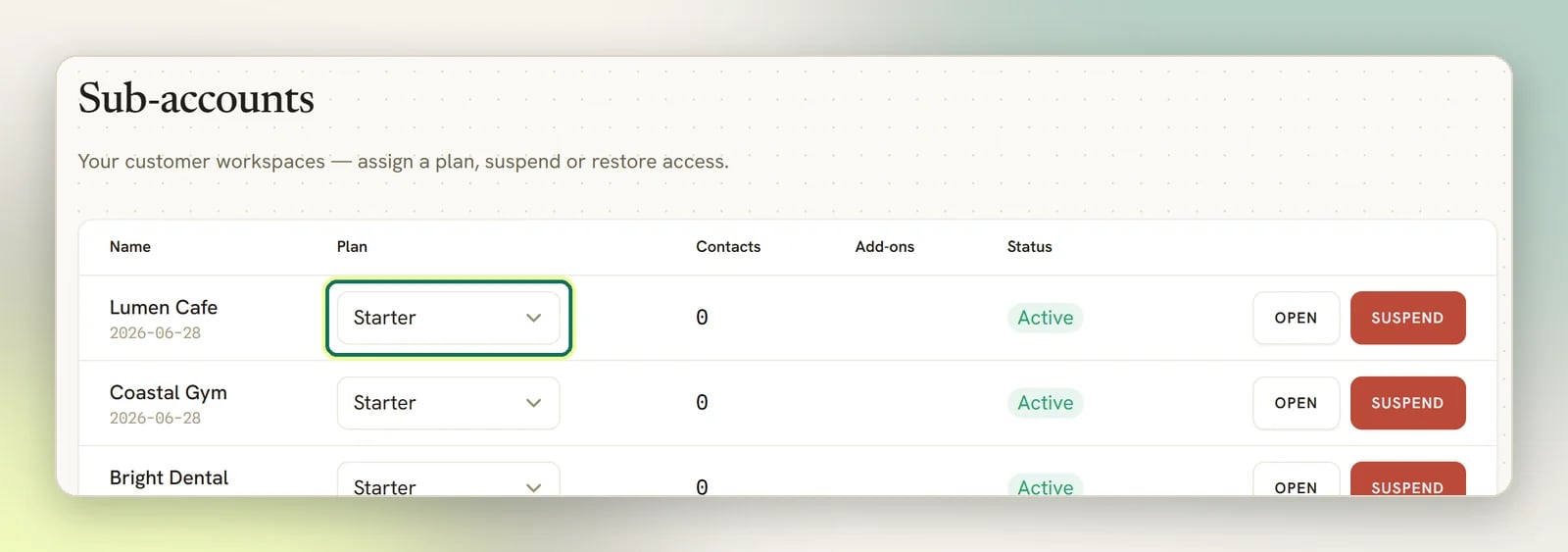
Sell add-ons
An add-on is a plan you create with Add-on plan turned on, then choose an Add-on type:- Extra contacts
- Extra profile per channel
- Additional teammate
An add-on plan you leave Enabled also appears on your clients’ own Plans & billing
page as a plan they can subscribe to, and a priced one will start a real Stripe checkout.
Leave add-on plans disabled unless you intend that.
What your clients see
Your clients don’t have a DMLY billing page. When someone with admin access in a client workspace opens Billing from their user menu, they land on Plans & billing (your plans, your prices, your brand) and subscribe there through your Stripe account. A Monthly / Yearly toggle sits above the plans, and appears only when at least one plan is priced for each cycle. Their existing plan is marked Current.Your own workspace is the exception. Its Billing still points at DMLY, because that’s
where your reseller subscription lives. You are not a customer of your own agency.
Your reseller limits
Your reseller plan caps how many workspaces you can have under your agency. The exact number depends on the plan you’re on. See Plans. Your own workspace counts towards that cap: it sits under your agency too, so it appears in your Sub-accounts list and takes one of the slots. Your reseller plan also sets three pooled caps, shared by every workspace under your agency (your own included): total contacts, total connected profiles, and total WhatsApp numbers. A client can be refused a new contact or a new channel because of what other workspaces have used, even with room left on its own plan and any add-on you gave it. The client then sees “You’ve reached the contact limit for your account. Contact your provider to raise the limit.” or “You’ve reached the connected profile limit for your account. Disconnect a profile, or contact your provider to raise the limit.” You never create a client workspace yourself; they arrive when someone signs up on your branded domain or, if you’ve switched on Allow customers to create multiple workspaces in Settings (off by default), when an existing client creates another workspace. See Client workspaces. When you’re at your cap, signups on your branded domain stop and the Sub-accounts page warns you: You’ve reached your sub-account limit. Contact support to raise it. Raising it means moving to a bigger reseller plan, or asking DMLY support to lift it for your account.Related
Client workspaces
Assign plans, suspend, restore, and open a client’s workspace.
Branding
Your app name, logo, colour, and support email.
Custom domain
Serve your agency (and your signup page) on your own domain.
Plans
What your own reseller plan includes.