

This is not the booking domain. A booking domain belongs to a single workspace and serves that workspace’s public booking page. An agency domain belongs to you, the agency, and serves the whole product: sign-up, login and the dashboard your customers work in. A host can only be one or the other; if you try to connect a domain that’s already in use as a booking domain, you’ll see That domain is already in use.
Connect it
Open Reseller Dashboard from your user menu, then go to Configuration → Domain.1
Point your DNS
The panel shows the records to create under Create one of these records at your DNS provider: a CNAME or an A record. Add one of them at whoever manages your domain’s DNS, your registrar or your web host. DMLY doesn’t do this part for you.
2
Add your domain
Enter the host you want to use (for example 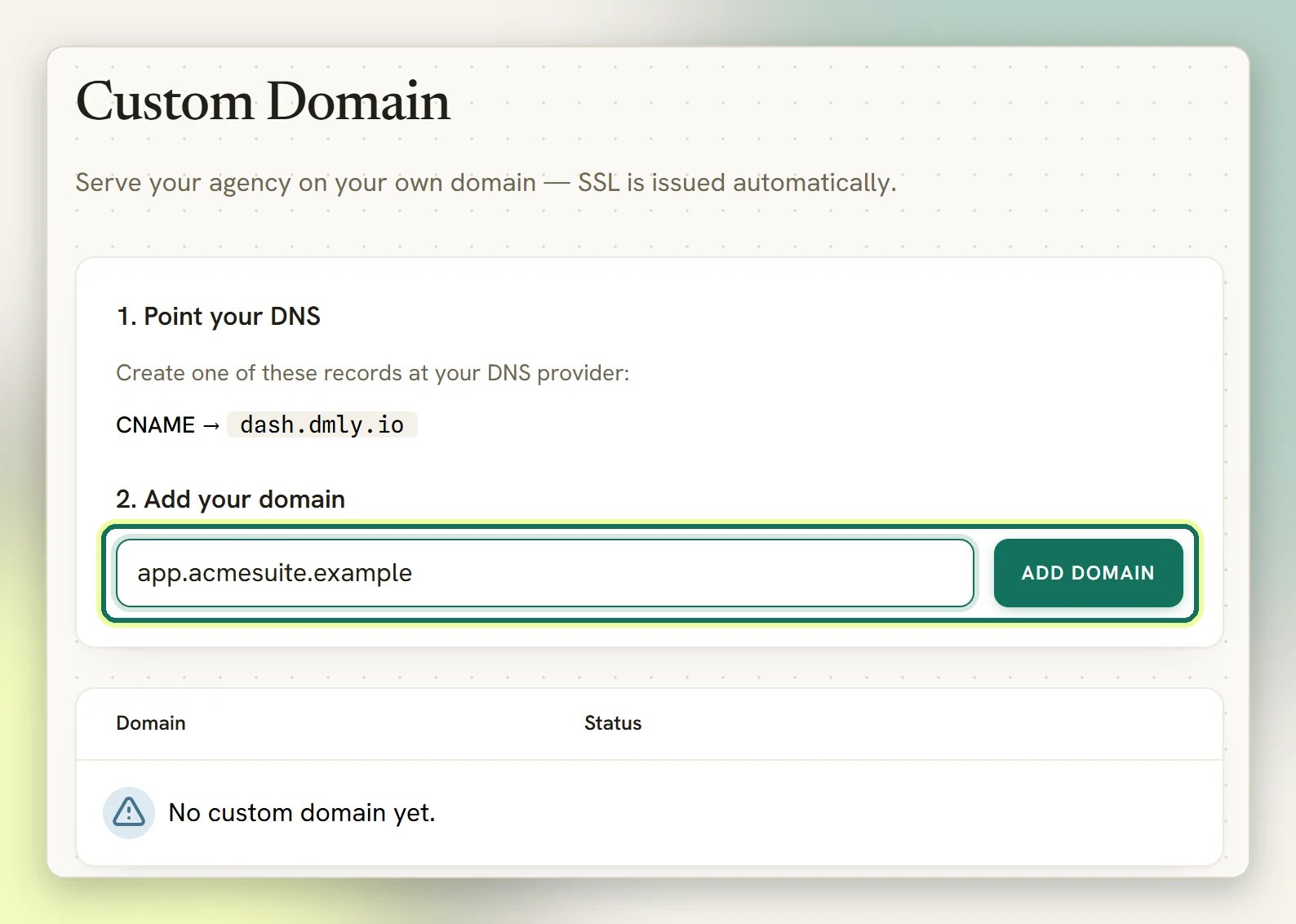
app.yourbrand.com) and select Add domain.3
Verify
Select Verify. If the record hasn’t spread yet you’ll get DNS is not pointing here yet. Check the record and try again. That’s normal shortly after a DNS change. Leave it and try again later; DMLY also re-checks on its own roughly every ten minutes and verifies the domain as soon as it resolves.
What the status means
The panel shows one of three states:- Pending DNS: the domain is saved but nothing points at it yet.
- Verified · issuing SSL: DNS resolves, and the certificate is being issued. This isn’t instant.
- SSL active: DMLY has loaded your domain over HTTPS and confirmed the certificate is really live. The badge only turns green on a real end-to-end check, so it can’t tell you the domain is ready when it isn’t.
The background check runs in both directions, so a live domain isn’t permanently live. If the DNS record is removed or stops resolving for around a day, the domain drops back to Pending DNS on its own. Keep the record in place for as long as you want the domain.
Remove a domain
Select Remove on the domain row, then confirm with Remove domain. To move to a different host, remove the current one first; while a domain is connected the add field is replaced by You’ve connected a custom domain. Remove it below to connect a different one.If it won’t verify
The domain never verifies
The domain never verifies
DMLY can only verify a host that actually points at it, so the cause is almost always the DNS record. Re-check it against what the panel shows: the record type, the exact host, and that there isn’t an older conflicting record for the same name still in place. Some DNS providers append your domain to the host automatically, which silently produces
app.youragency.com.youragency.com. After a correction, select Verify again.That domain is already in use
That domain is already in use
The host is claimed elsewhere, most often as a workspace booking domain, including in one of your own sub-accounts. Pick a different host, or free the existing one first. You also can’t use the DMLY address itself.
Branding
Your app name, colour, logo and support email, applied on your domain.
Client workspaces
The sub-accounts that arrive when customers sign up on your domain.